Other
What is a Maker Page and how do I create one?
A Maker Page is a representative profile page where supporters can view all of a maker's information in one place.
[Table of Contents]
- What is a Maker Page?
- Maker Page Profile Screen Layout
- Maker Page Menu Composition
- How to Create
- Management and Usage Methods - Maker Page Studio
1. What is a Maker Page?
- A Maker Page is a representative profile page where supporters can view all of a maker's information in one place.
- Supporters can visit the Maker Page by clicking [Maker Information] on the right side of the project
- Makers can navigate to the Maker Page home by logging in to Wadiz > [Maker Home] > clicking the gear icon (Maker Page) next to the maker name in the upper right.
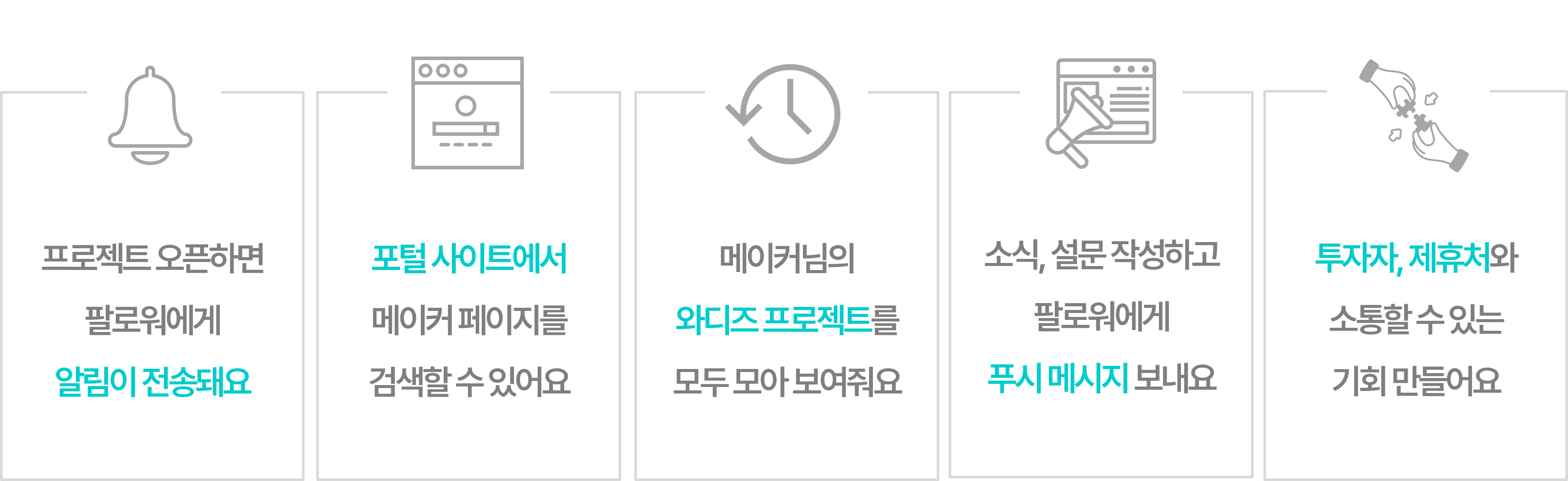
- You can use the page to introduce and promote the maker, or use the feature to send notifications to supporters.

2. Maker Page Profile Screen Layout
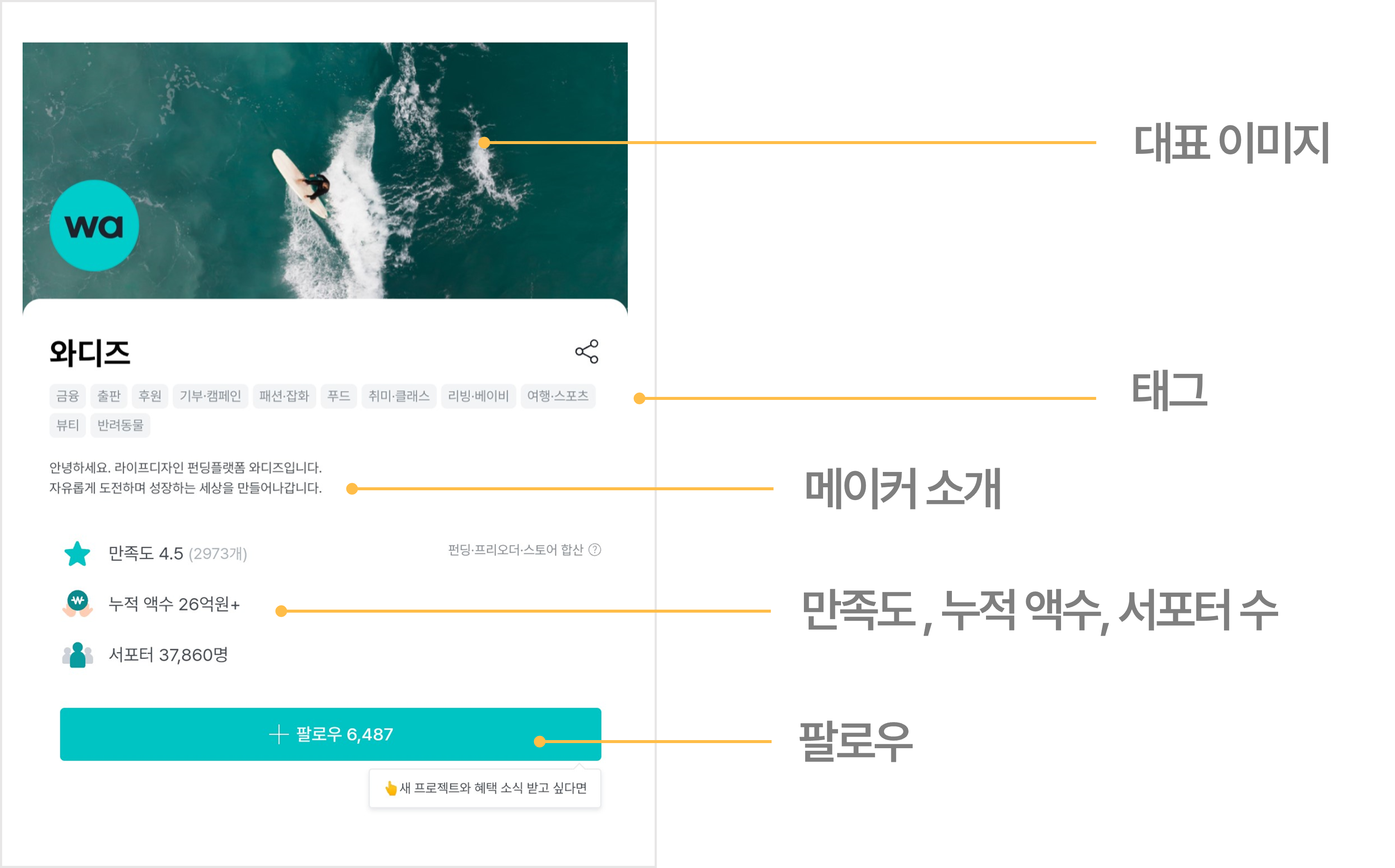
- Representative Image: Logo and an image representative of the maker
- Tags: Business type of the maker company or funding/pre-order/store categories in progress
- Maker Introduction: Introduction text displayed on the first screen of the Maker Page
- Satisfaction Rate: Average of satisfaction ratings from successful projects and stores
- Accumulated Amount: Total of in-progress + successful or failed projects + store payment completed amounts
- Number of Followers / Follow Button: Number of supporters following the maker / Follow button to receive maker news
3. Maker Page Menu Composition
1) Projects · Satisfaction Rate:
- You can view the projects the maker has conducted and the satisfaction ratings from supporters of successful projects.
- Store → Funding → Pre-order order, with current ongoing projects through completed projects displayed in order.
2) Maker News
- A feed-type page showing a collection of news and survey lists sent by the maker to followers.
3) Maker Information
- For companies registered with Korea Data (KoDATA), company information is automatically populated.
- If you don't have a registered business number, you can enter it directly.
- If modification is needed, please check the <Can Maker Page information be modified?> guide.
4. How to Create
1) Business Owner Maker
- Maker Home > Click [Create Maker Page](link) > Select [Create as Business Owner] for maker type
- When you enter your [Business Registration Number], information registered with Korea Data (KoDATA) is automatically retrieved for easy completion.
2) Individual without Business Registration Number
- Maker Home > Click [Create Maker Page](link) > Select [Create as Individual] for maker type
- After mobile phone number authentication, agreement to required terms is needed.
Please enter the information and register an administrator.
- Individual accounts: One Maker Page can be created per account.
- Business accounts: Multiple Maker Pages can be created.
For how to add administrators, please check the following guide. ▶What is a Maker Page administrator and how do I register one?
5. Management and Usage Methods
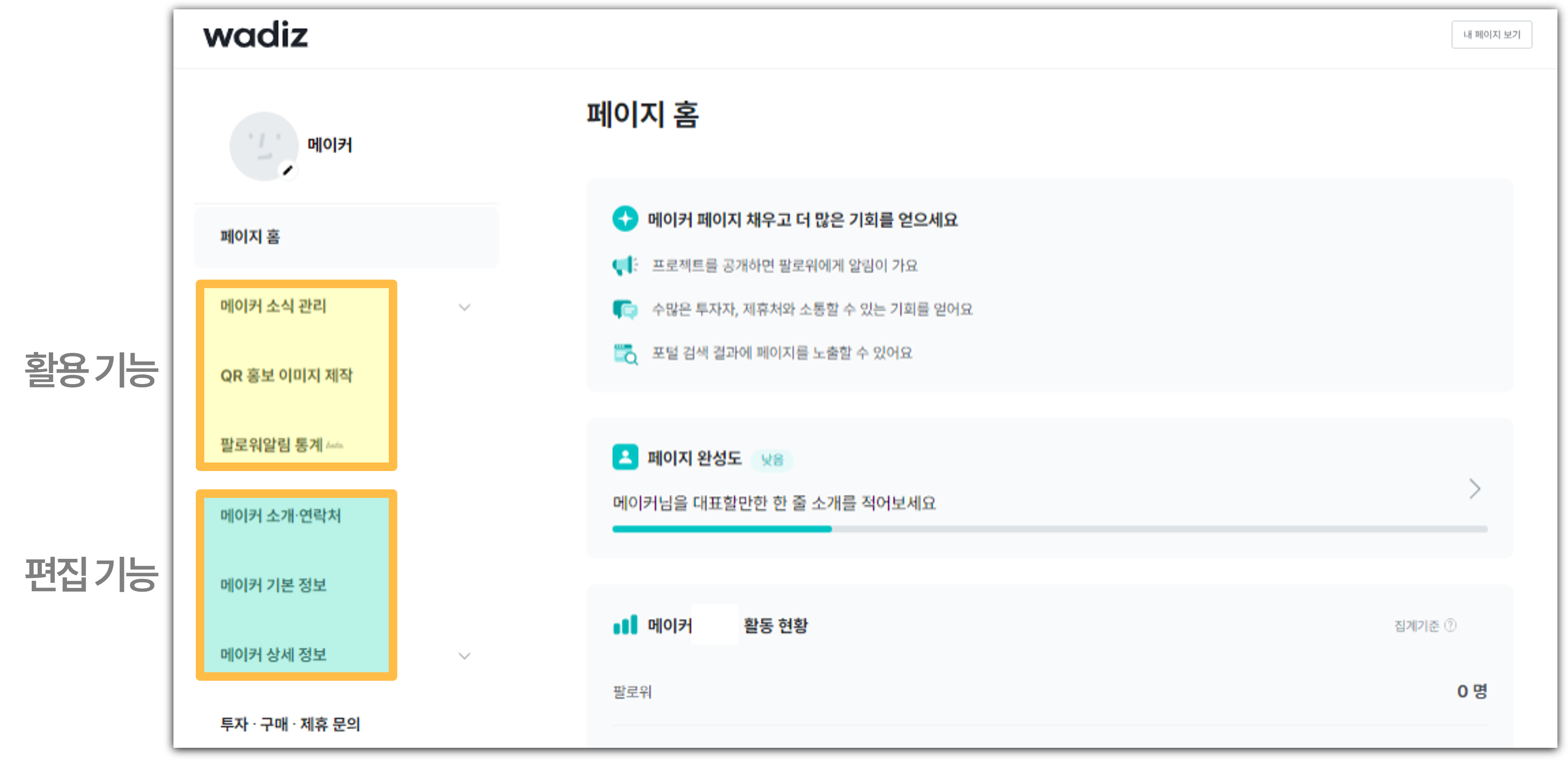
- Clicking the [Edit Maker Page] button on the main page of the created Maker Page takes you to [Maker Page Studio].
- You can manage and utilize the page through Maker Page Studio.
- Editing Features: Manage maker introduction, contact information, basic information, and detailed information
- Utilization Features: Publish maker news and surveys, send app push notifications, create QR promotion images, check follower statistics data
-
Related Guides