I'm curious about how to use the Store and Wadiz Shipping service!
After opening a Store project, you can apply for Wadiz Shipping directly.
Wadiz Shipping is a service where Wadiz handles order management·shipping, marketing, and CS. Please check the detailed content in the guide below.
▶ What is Wadiz Shipping?
▶ Wadiz Shipping Service Brochure (PDF)
[ How to Use Wadiz Shipping ] (Click to navigate)
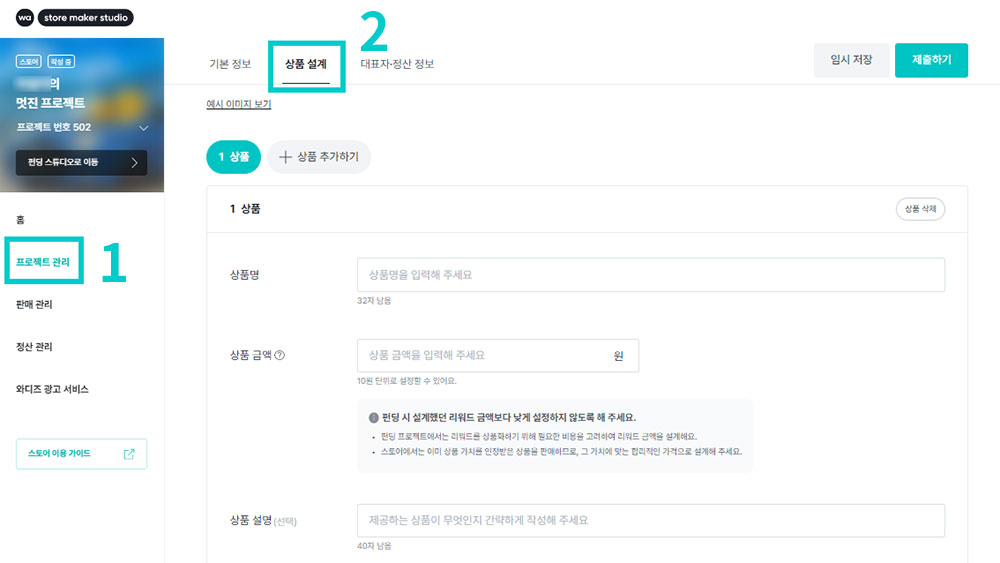 |
1. After opening a Store project, please click the [Project Management] menu.
2. In the [Project Management] menu, enter the basic information, product design, and representative settlement information, then click [Save Temporarily].
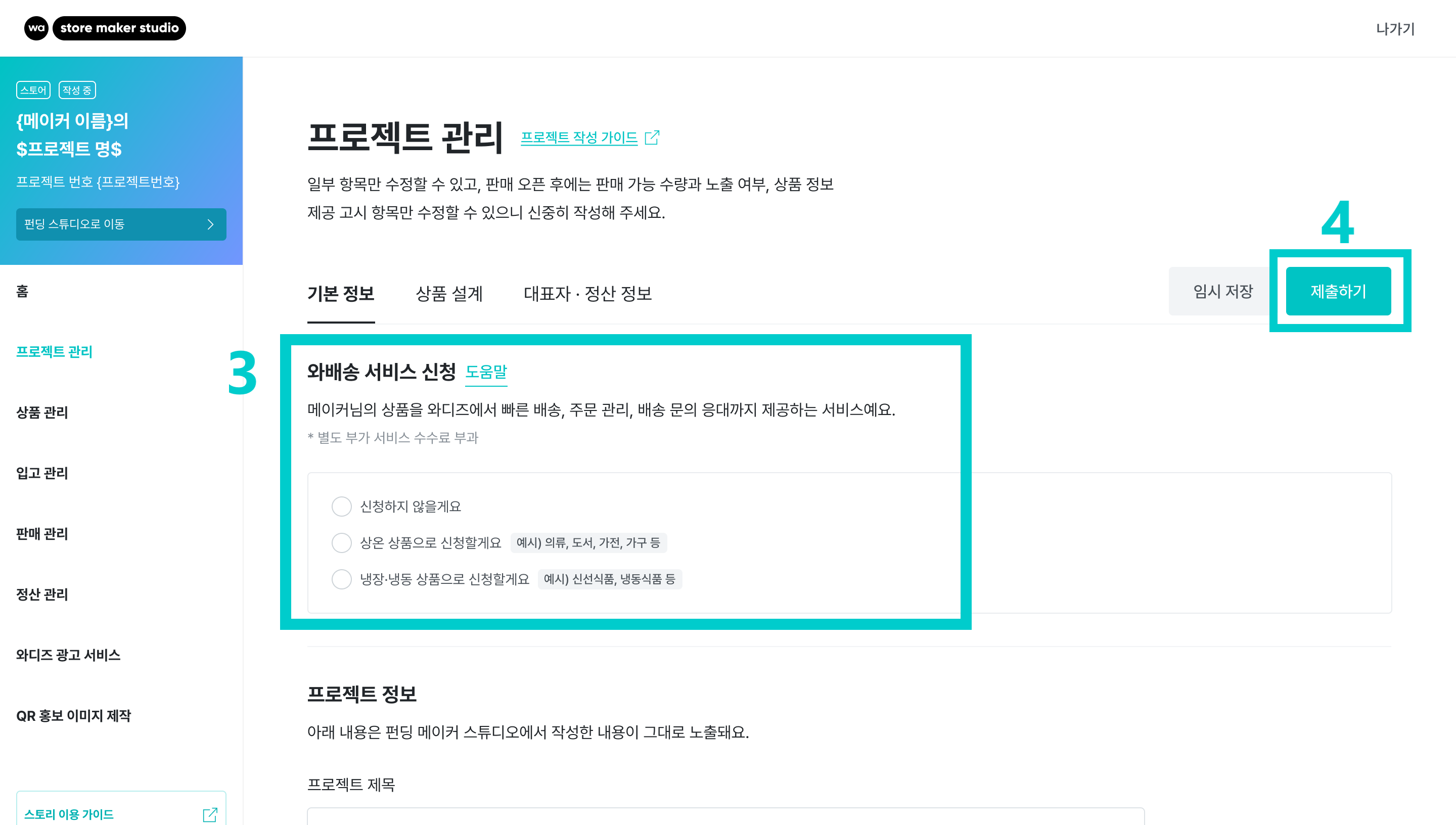 |
3. Please check [Apply for Service] in the Wadiz Shipping service application.
- Please select according to storage temperature.
4. After checking, click the [Submit] button to submit the Store project, and Wadiz Shipping review will begin.
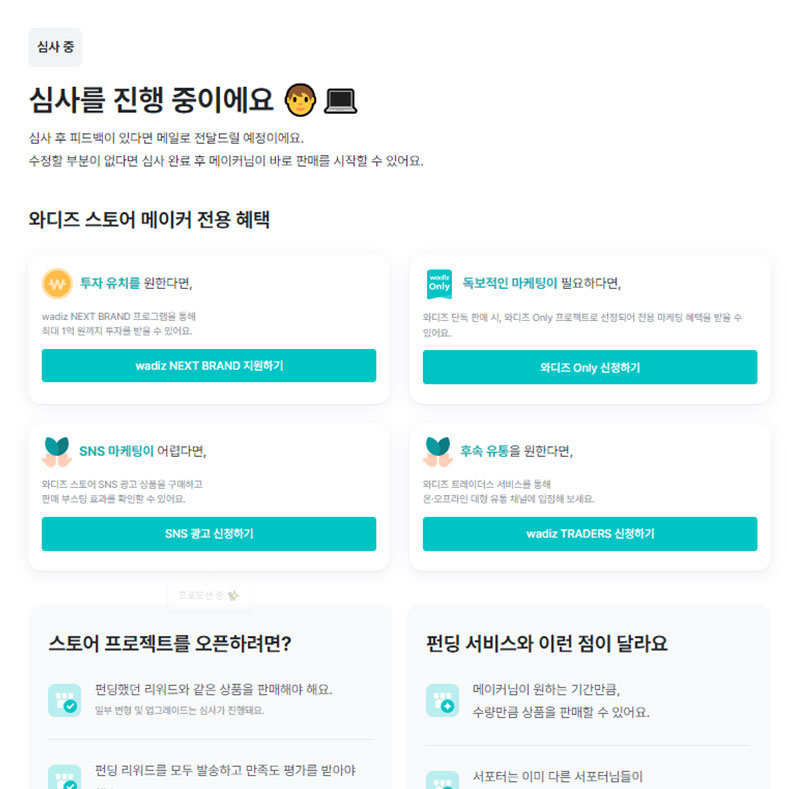 | 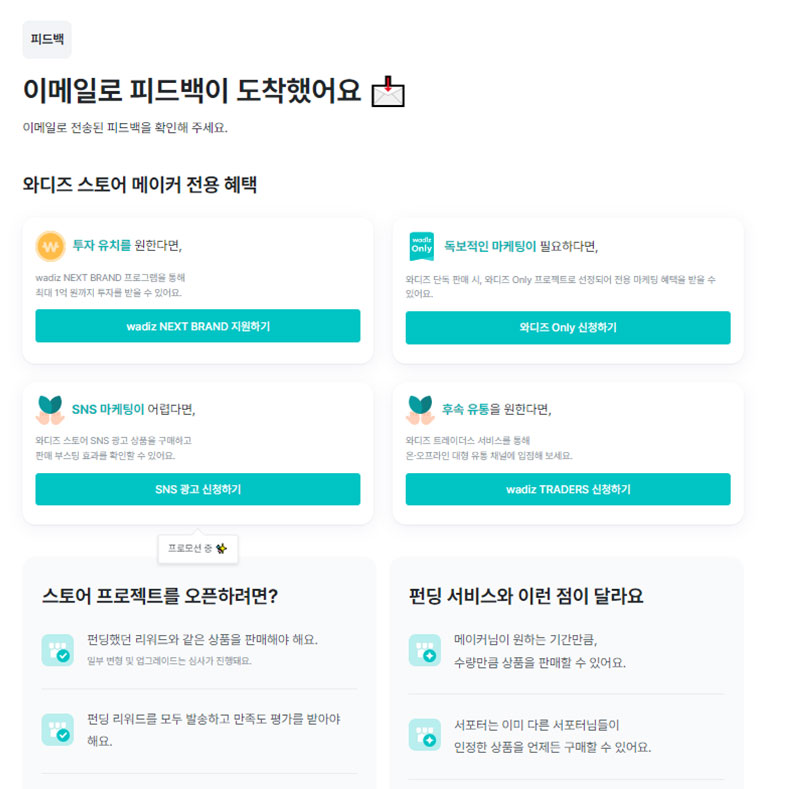 |
| During review progress - Store Maker Studio | When there is review feedback - Store Maker Studio |
5. Service approval is completed through the review process.
- A Wadiz representative will review the submitted project. The review takes approximately 3 business days, and we will notify you of the approval status and any required modifications via email.
- If there are errors in product or business information, a revision request email will be sent.
- When service approval is complete, we will notify you via KakaoTalk.
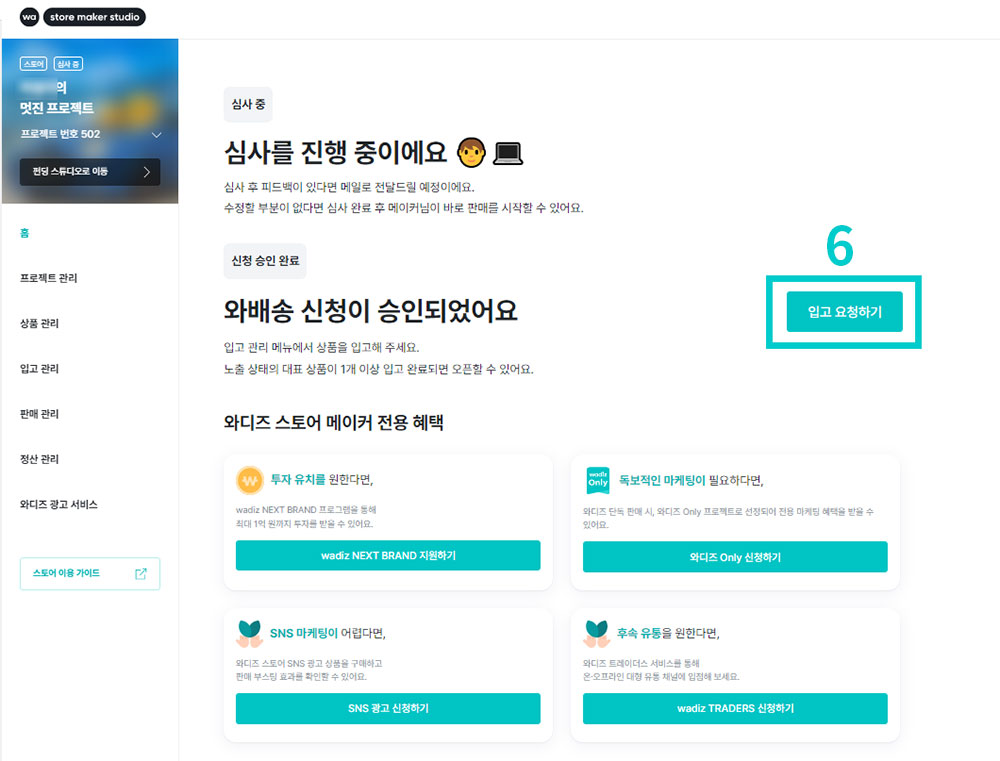 |
6. Once Wadiz Shipping application is approved, the [Request Warehouse Entry] button in Store Maker Studio will be activated.
② Warehouse Entry
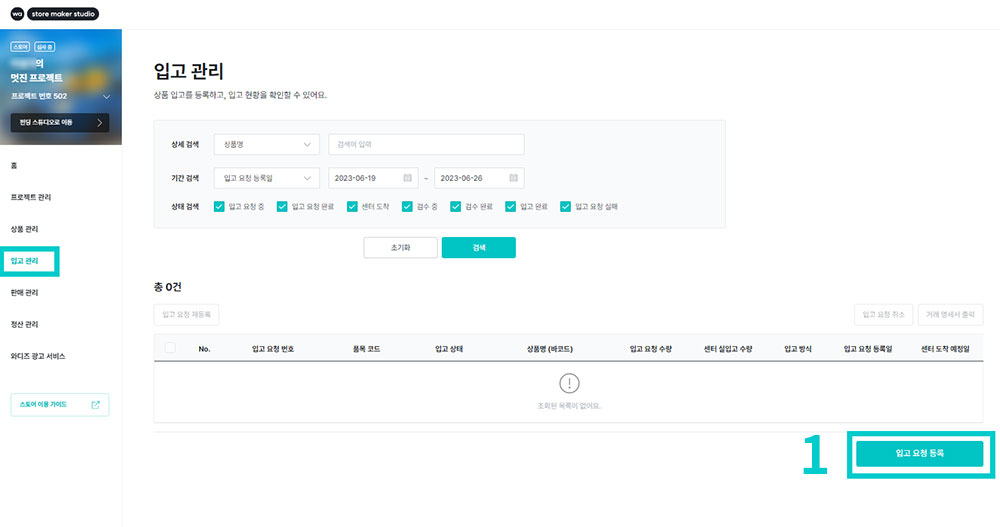 |
1. In the [Warehouse Management] menu, click [Register Warehouse Entry Request] at the bottom right.
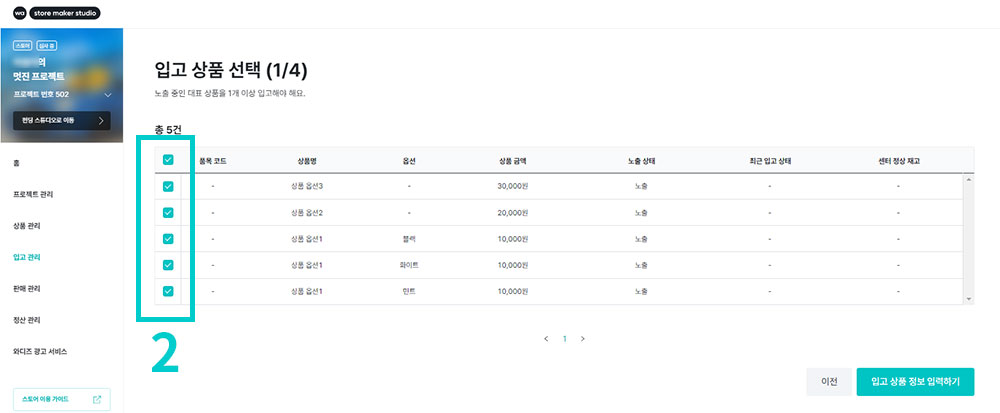 |
2. Select the products to store from those registered in the project. When you click the checkbox on the left to select products, the [Enter Warehouse Product Information] button will be activated.
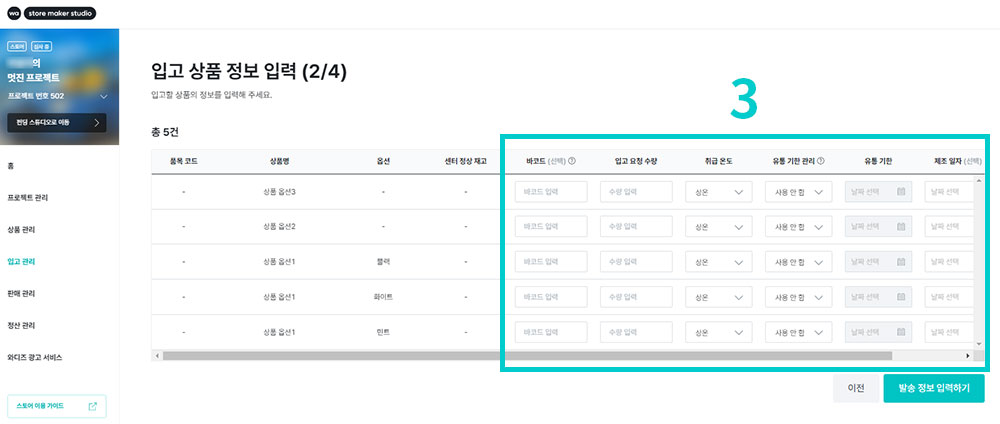 |
3. Please fill in barcode, warehouse entry request quantity, handling temperature, shelf life management and other information necessary for product warehouse entry completely.
- If you do not enter the barcode, it will be synchronized with the product code, and barcode generation costs will be incurred.
- Shelf life management settings cannot be modified if there is inventory at the center. Please be sure to enter it at the time of first warehouse entry.
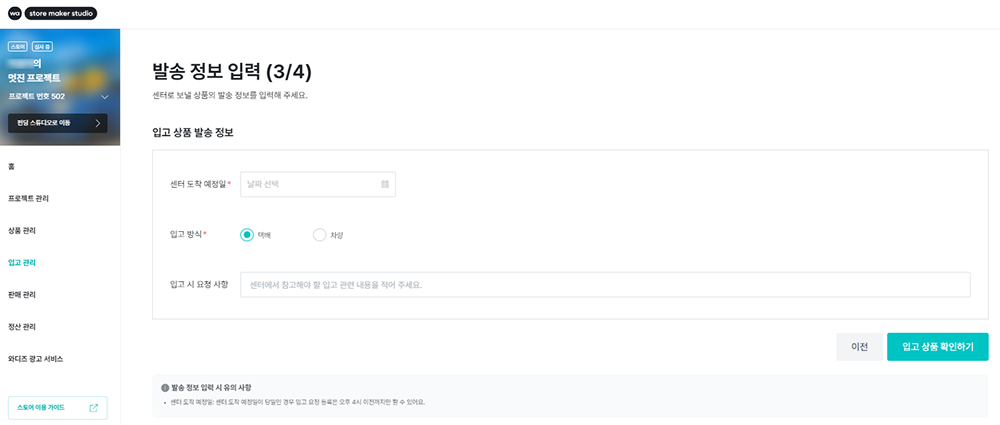 |
4. Please enter the shipping information for the product.
- The expected center arrival date can only be set on business days (excluding weekends and holidays).
- If the expected center arrival date is the same day as the application, warehouse entry request registration can only be done before 4:00 PM.
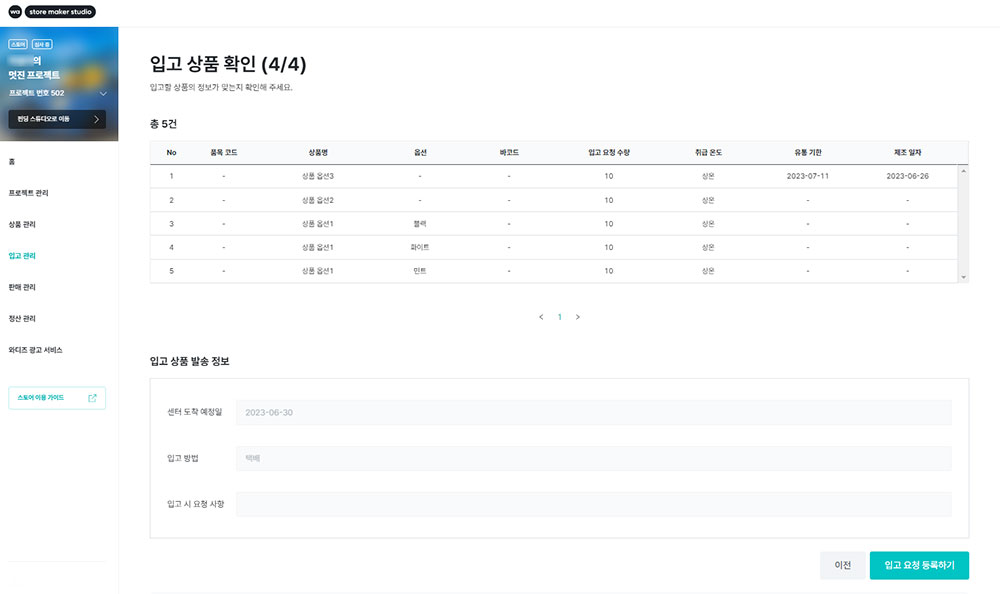 |
5. After confirming the products to be warehoused and the shipping information, please click [Register Warehouse Entry Request].
- If the information you entered in the warehouse entry request differs from the actual product information that arrived at the center, warehouse entry may be delayed or the product may be returned.
- If the product does not arrive by the expected center arrival date, warehouse entry may be delayed or canceled.
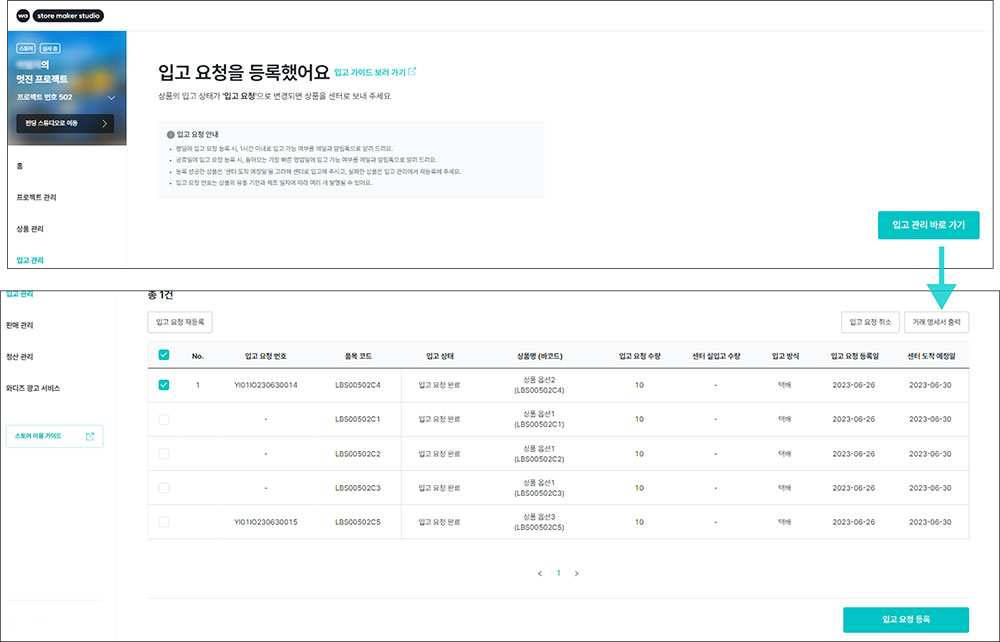 |
6. When warehouse entry request registration is completed successfully, we will notify you via email.
- You can check the transaction statement for shipping in two ways.
- [Store Maker Studio] - [Warehouse Management] - Click [Print Transaction Statement] button
- Click the [Print Transaction Statement] button in the warehouse entry request registration completion email
③ Sales
After warehouse entry is completed, start Store sales and easily manage products in the Store Maker Studio.
 | 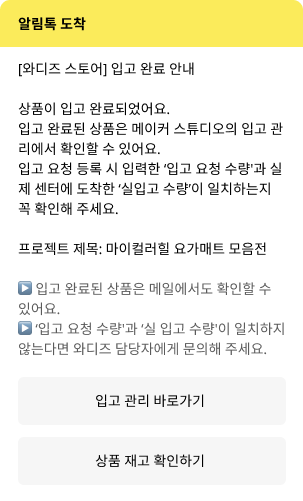 |
| Warehouse Entry Completion Notification - Email | Warehouse Entry Completion Notification - KakaoTalk |
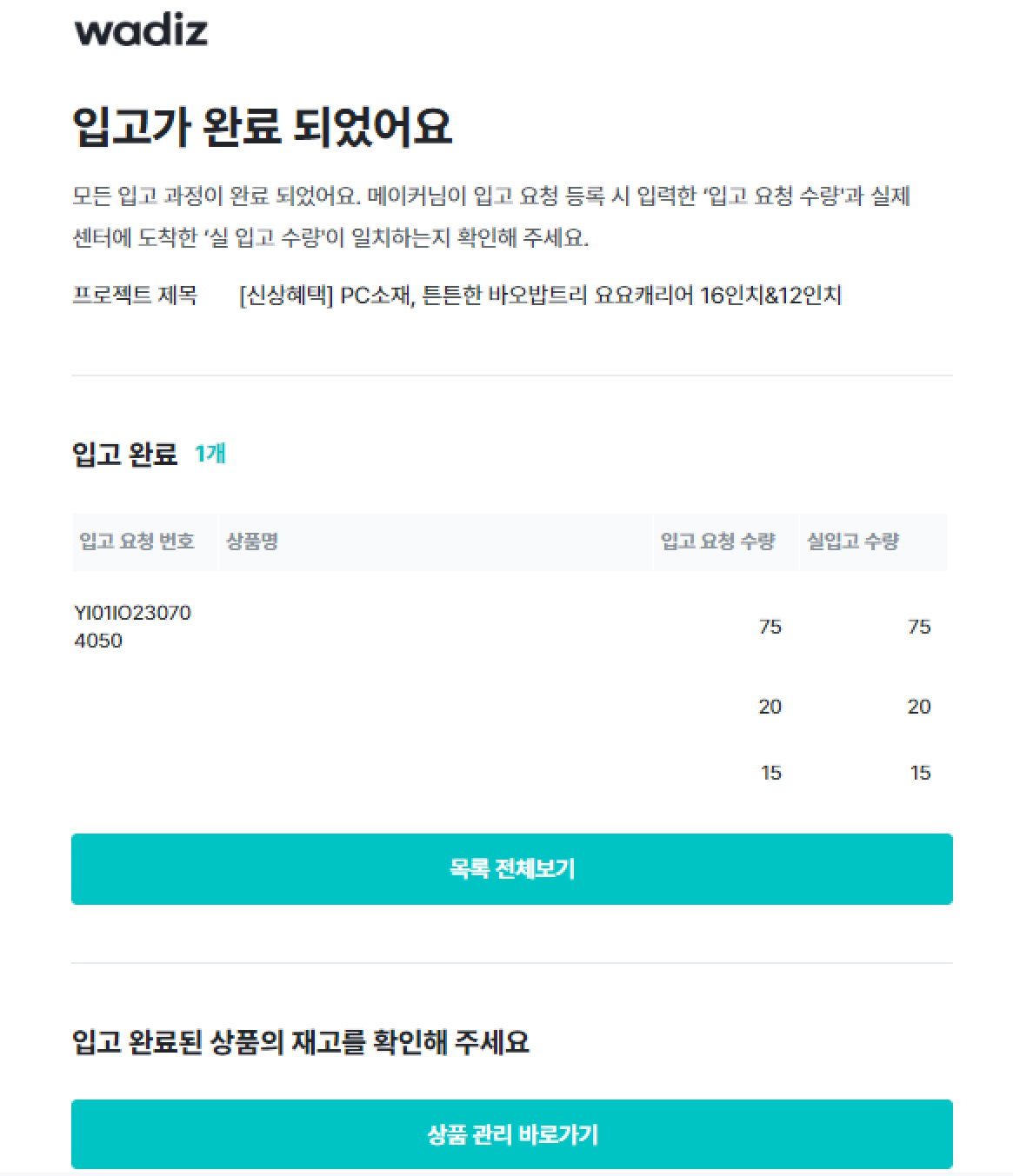
1. When center warehouse entry is confirmed , a [Warehouse Entry Completion Notification] will be sent via KakaoTalk and email.
- At this time, please be sure to check if there is any discrepancy between the actual warehouse entry quantity and the center confirmed quantity.
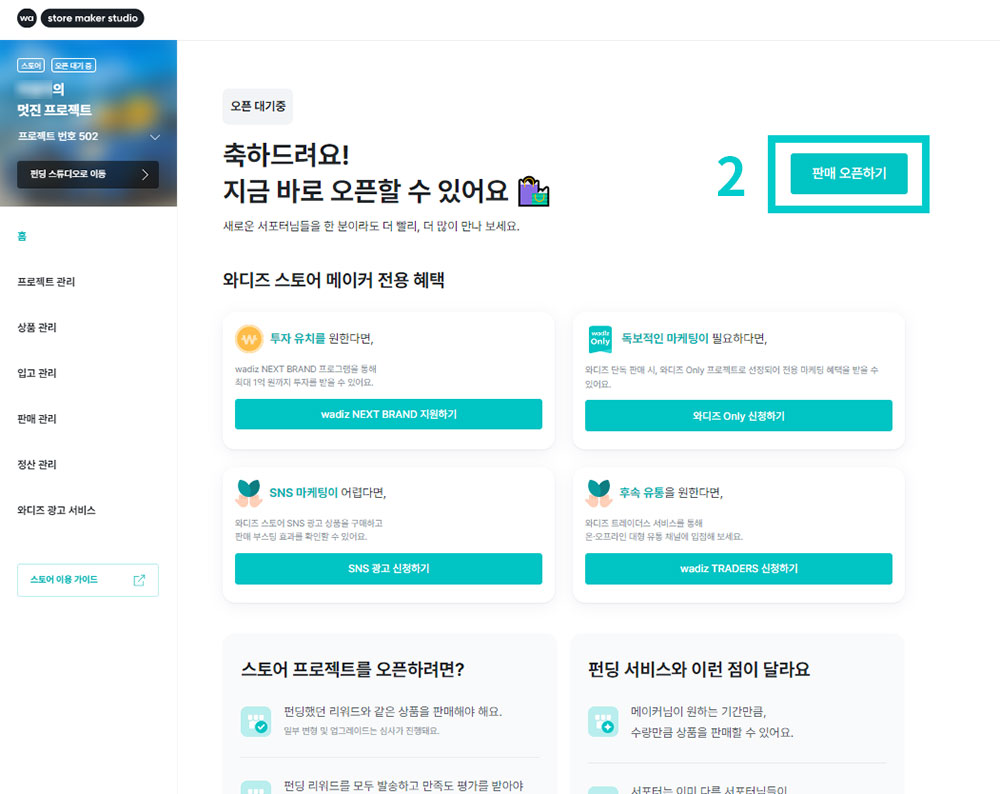 |
2. When warehouse entry is confirmed the [Open for Sales] button will be activated. When you click [Open for Sales] product sales will start immediately.
④ Product·Sales Management
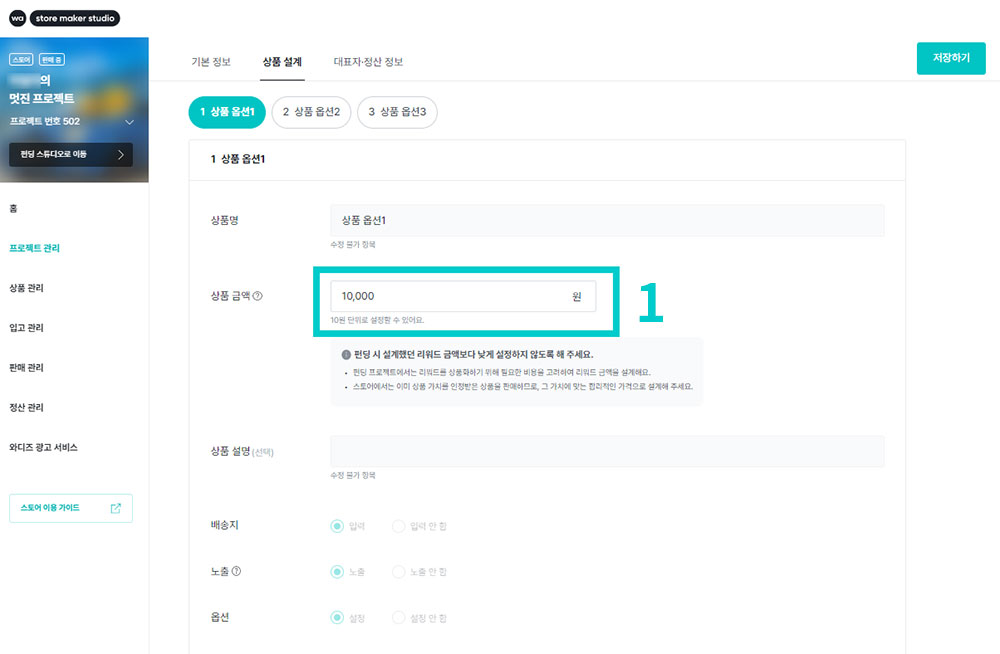 |
1. During Store sales, the product price can be changed in the [Product Design] section of the [Project Management] menu.
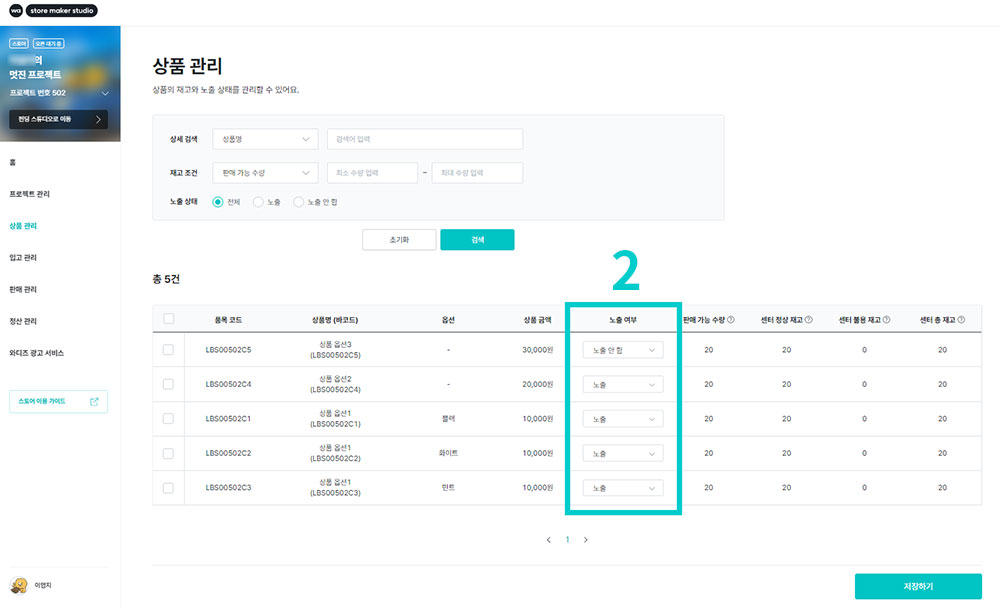 |
2. Product visibility can be set in [Product Management].
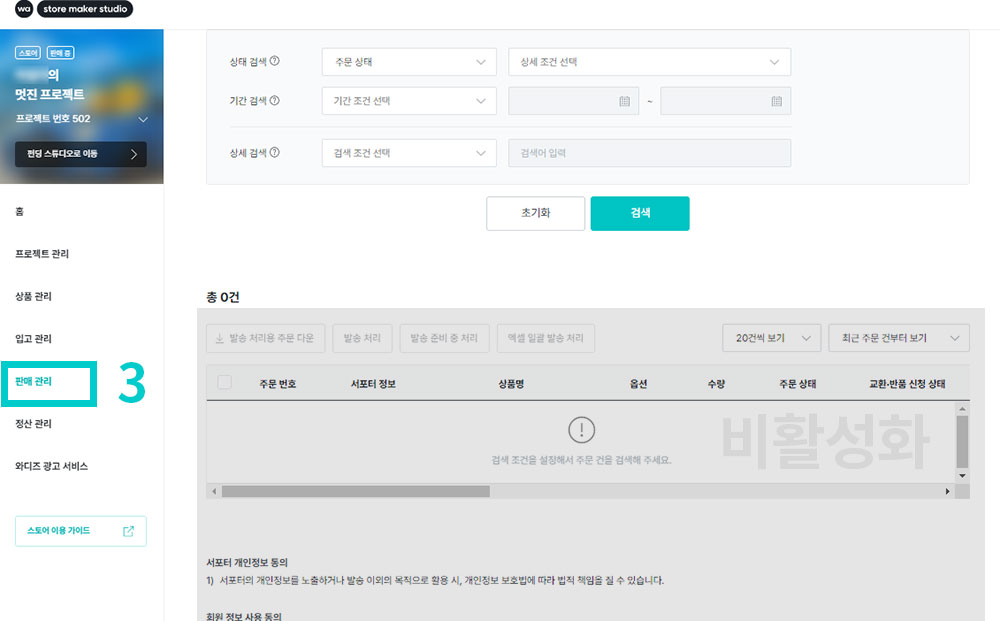 |
3. In the [Sales Management] menu, you can view order status and return&exchange details.
- Orders that came through Wadiz Shipping are being processed directly by Wadiz for shipping.
- The buttons for shipping processing within Sales Management are all disabled and cannot be clicked when accessing with a Maker account.
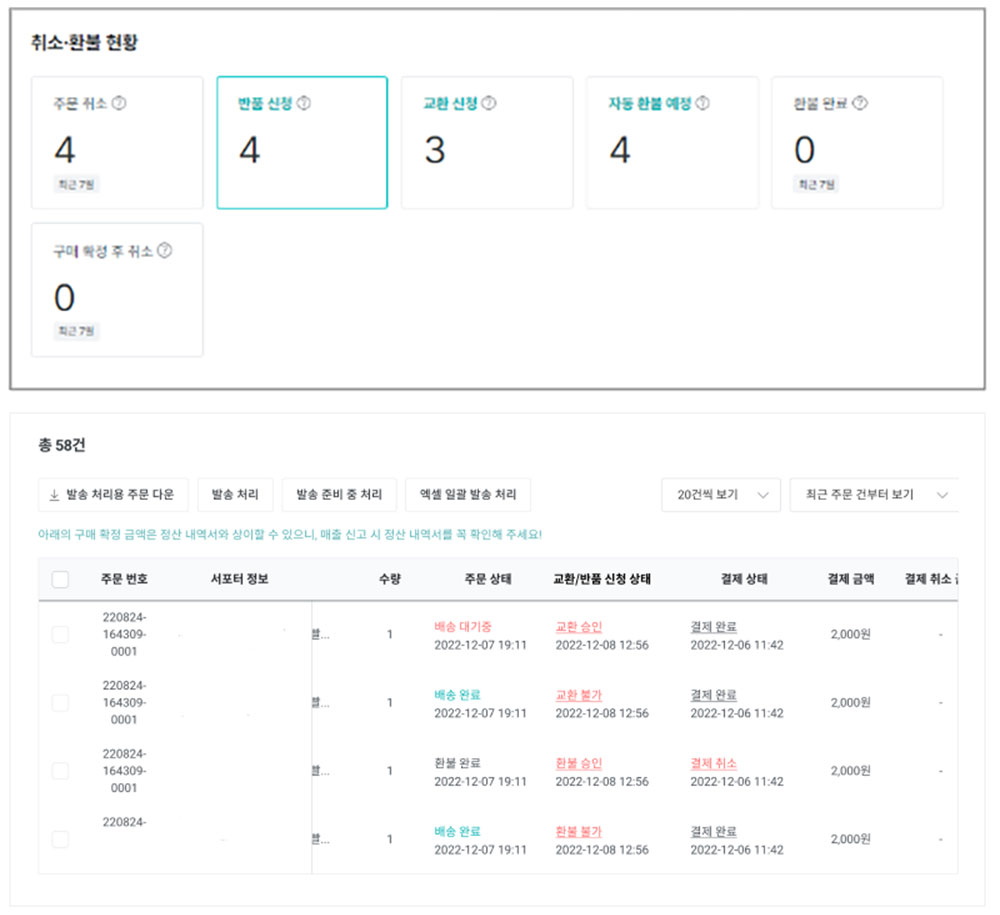 |
4. You can check the detailed reason for the completed return&exchange request.
- When you click the payment status link for each order, you can view the content written by the supporter.
⑤ Settlement
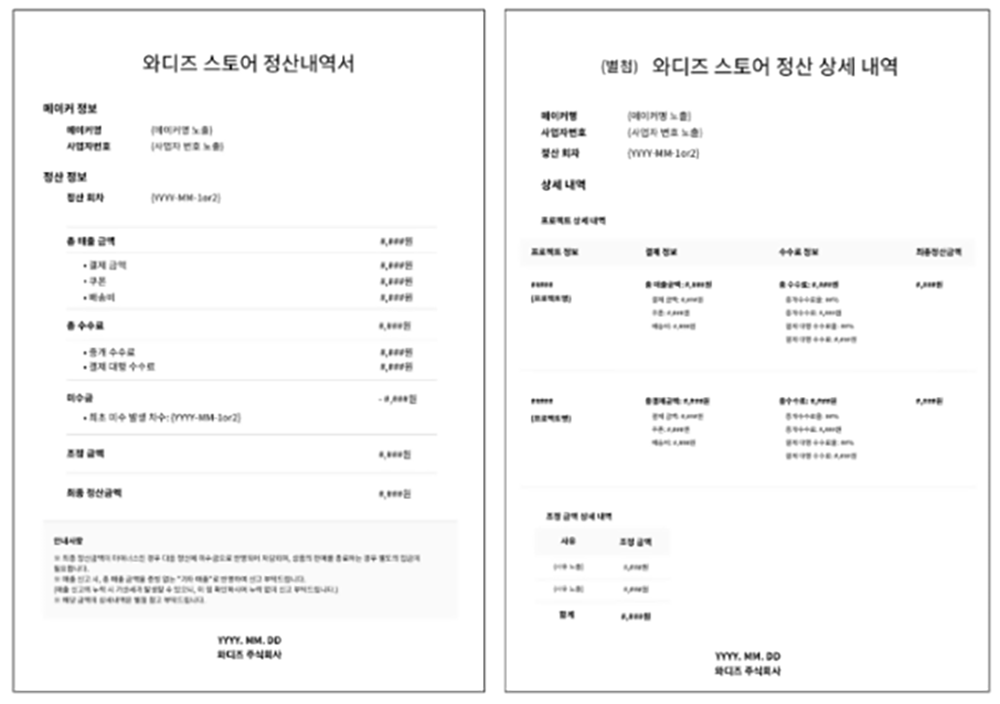
- Wadiz Shipping settlement occurs once every two weeks.
- Based on the 15th and last day of each month, you can check orders that have 'purchase confirmed' without refund requests within 7 days after shipping is completed.
- If you have submitted multiple Store projects with the same business registration number, all project information will be updated in bulk based on the most recently submitted information.
- Please check the detailed settlement details through the [Settlement Management] menu in the Store Maker Studio by searching for your desired period.
Do you have any other questions?
- Related inquiries: team.store@wadiz.kr
- Wadiz Maker Center: https://makercenter.wadiz.kr
- Request Wadiz Shipping CS Report: https://bit.ly/3CT1WmP