[Service Notice] Maker Studio 'Schedule' Menu Improved
Hello. This is Wadiz.
We are improving the Maker Studio features to enhance the Wadiz experience for makers and enable more efficient project launches.
The improved Maker Studio will be available from Thursday, February 22, 2024, and will apply to all projects regardless of when Funding or Pre-order projects are launched. Please refer to the details below.
※ Did you enter and save 'Project End Date' and 'Reward Shipping Start Date' in the existing Maker Studio?
The schedule you entered is saved securely and can be checked again from the [Schedule] menu after final approval is completed, so please don't worry.
1. Plan and set your project schedule all at once.
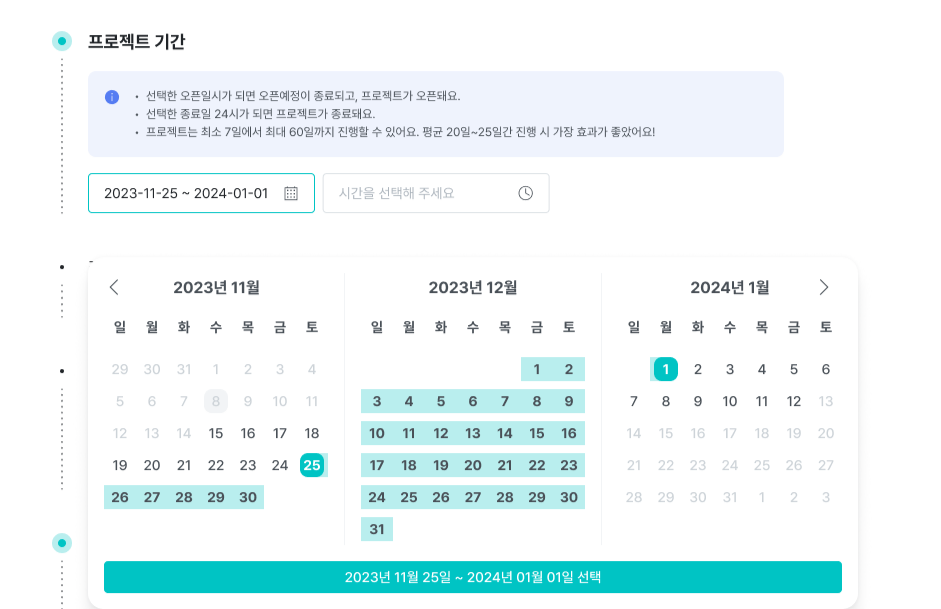
Now you can set all schedules from the after final approval [Schedule] menu, not during the project launch phase. You can select the project period (start date, end date) and then set the shipping period for each reward all at once.
| Changes | Before Improvement | After Improvement |
|---|---|---|
| Project Schedule | After project launch and before submission, in the [Basic Information] menu [Project End Date] Setting | After project submission and final approval, in [Schedule] menu [Project Period (Open Date, End Date)] Setting |
| Reward Shipping Schedule | After project launch and before submission, in the [Reward Design] menu [Reward Shipping Start Date] Entry | After project submission + final approval in [Schedule] menu [Reward Shipping Period] Setting |
1) If you proceed with Coming Soon:
- Enter the project period and reward shipping period.
- Press the [Save] button at the desired time to publish Coming Soon immediately.
2) If you open this project without Coming Soon:
- Enter the project period and reward shipping period according to your desired schedule. Press [Save] and your project will be scheduled to open on the selected start date.
- If you set today's date as the start date, the project will be published immediately.
※ Once Coming Soon is published or this project is opened, the schedule cannot be changed. Please carefully select and save the project period and reward shipping period.
Example Screen: [Schedule] Menu > Project Period |
|---|
 |
Example Screen: [Schedule] Menu > Reward Shipping Period |
|---|
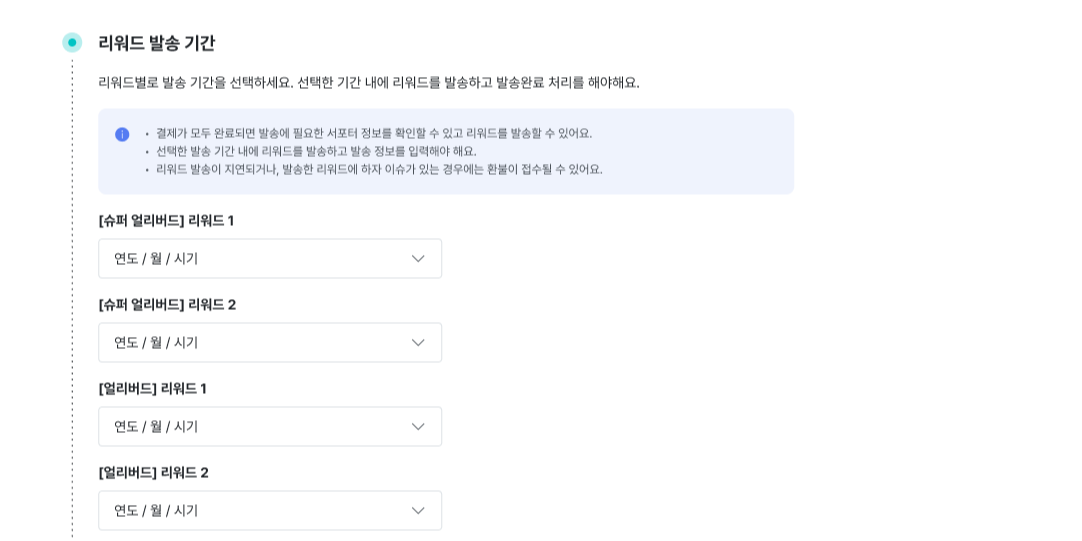 The [Reward Shipping Period] input field is only active once [Project Period] is set. The [Reward Shipping Period] input field is only active once [Project Period] is set. |
2. After publishing your project, check the expected payment and settlement dates from the [Schedule] menu.
- From the [Schedule] menu, you can check the expected payment and settlement dates for ongoing projects.
- The project period and reward shipping period you set can no longer be modified.
For inquiries related to Maker Studio, please contact the Wadiz Help Center Submit Inquiry, via email info@wadiz.kr, or call our Customer Service at 1661-9056 (Business hours 9 AM - 6 PM).
We will always strive to provide better services and environments.
Thank you.
Best regards, Wadiz