I'll explain how to use the Maker Home and its main features.
The 'Maker Home' is an essential page that every maker must visit.
In 'Maker Home', you can check various information needed to operate your project all at once.
Check your project status, supporter responses, and key data all in one place without navigating through multiple screens.
Additionally, through WAi, the AI assistant exclusively for makers, you can ask questions and receive customized guidance suited to your situation.
Below, I'll explain how to use Maker Home and its main features.
Table of Contents
- What is Maker Home?
- How to Access Maker Home
- Maker Home Structure and Main Features
- Things to Note When Using
1. What is Maker Home?
'Maker Home' is a page that helps you manage your project more efficiently by consolidating the functions needed for your maker activities in one place.
You can check your project progress, respond to supporter inquiries, and use various functions needed for operation all at once.
2. How to Access Maker Home
- PC: After logging into Wadiz, click [Maker Home] in the top menu.
- Mobile Web / App: After logging into Wadiz, click [Maker Home] in the bottom menu in Maker Mode.
3. Maker Home Structure
Maker Home is divided into the top menu and the main information confirmation area.
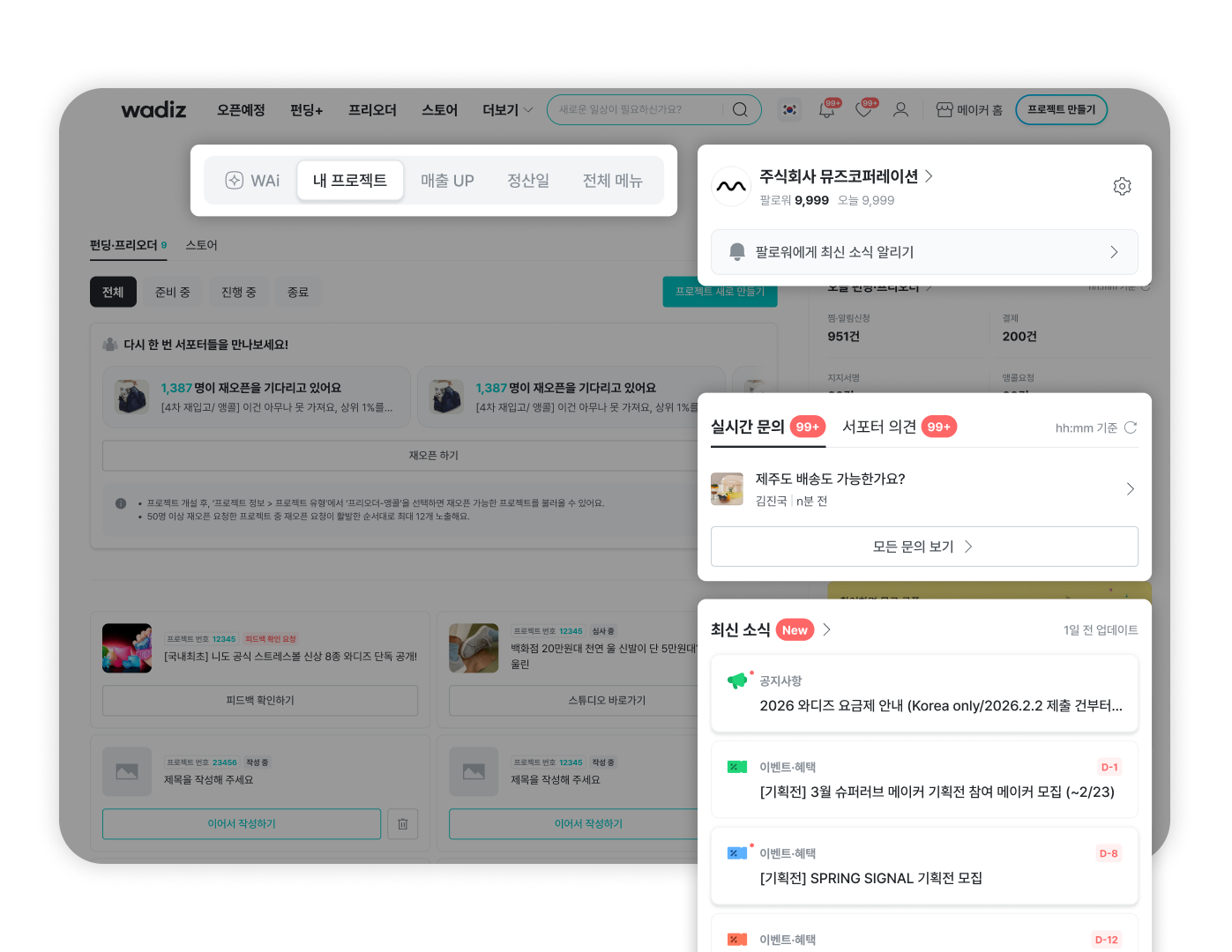
You can navigate to main features through the top menu of Maker Home.
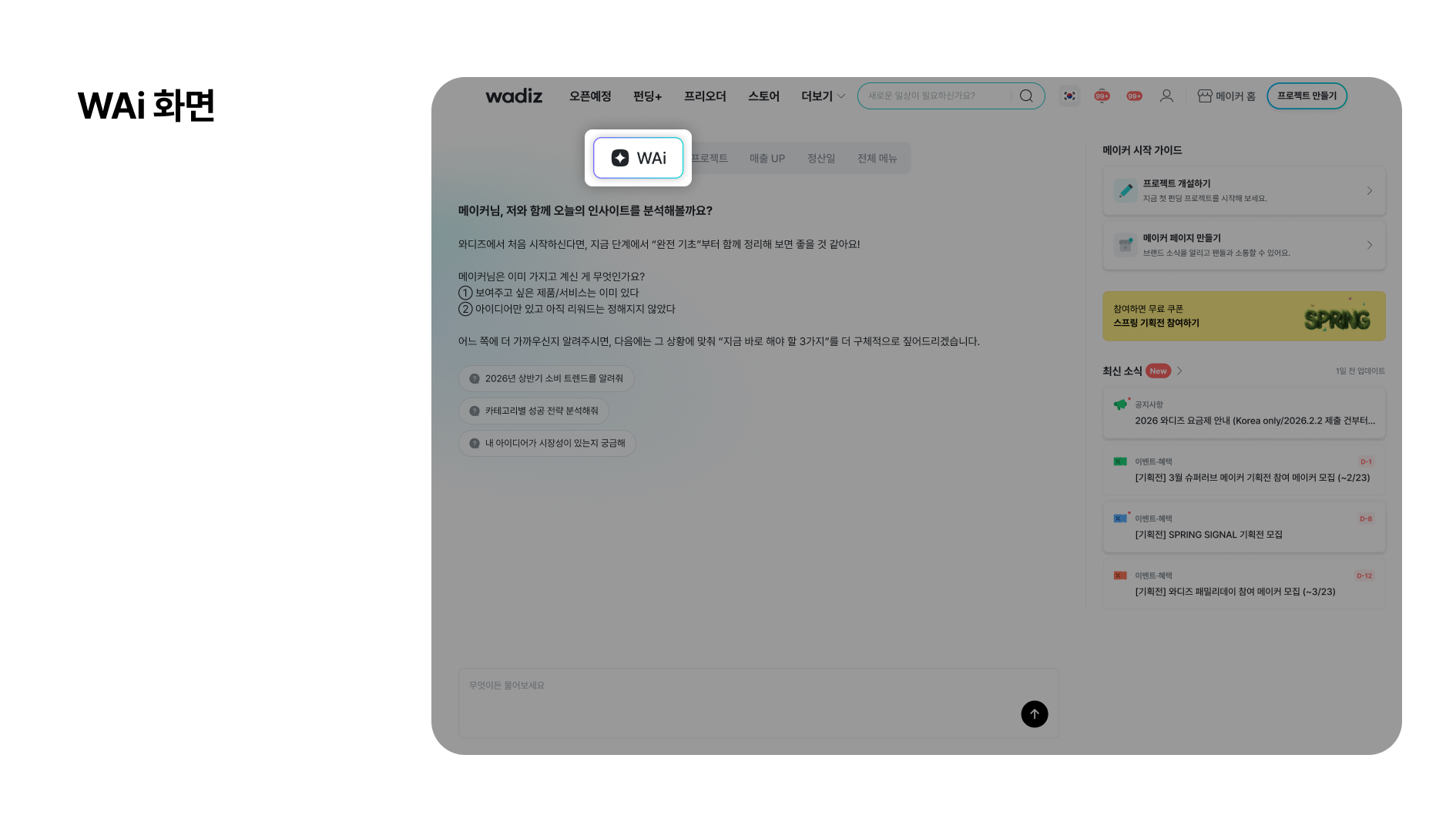
- WAi: WAi is Wadiz's AI assistant that provides information needed based on your project status and suggests next actions. \n
- You can receive customized guidance suited to situations like project preparation, review, operation, and marketing.
- You can quickly find answers to frequently asked questions.
- You can ask questions without logging in, and conversations are saved when you log in.
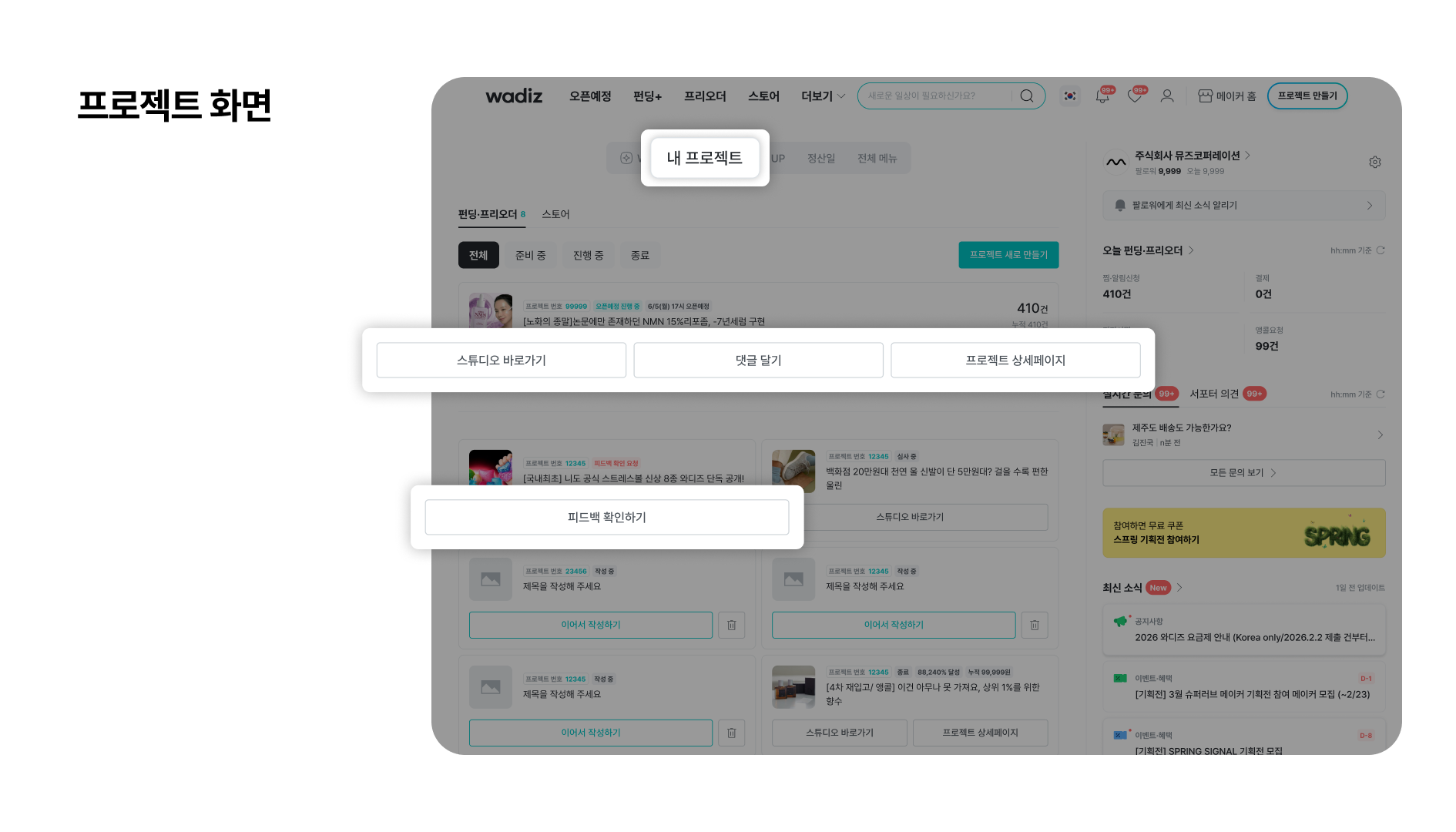
- My Projects: You can view and manage projects sorted by status, and proceed with necessary tasks based on project status. \n
- You can navigate to the Maker Studio for each project.
- You can view the detailed project page.
- You can write comments on supporter inquiries.
- You can view review feedback.
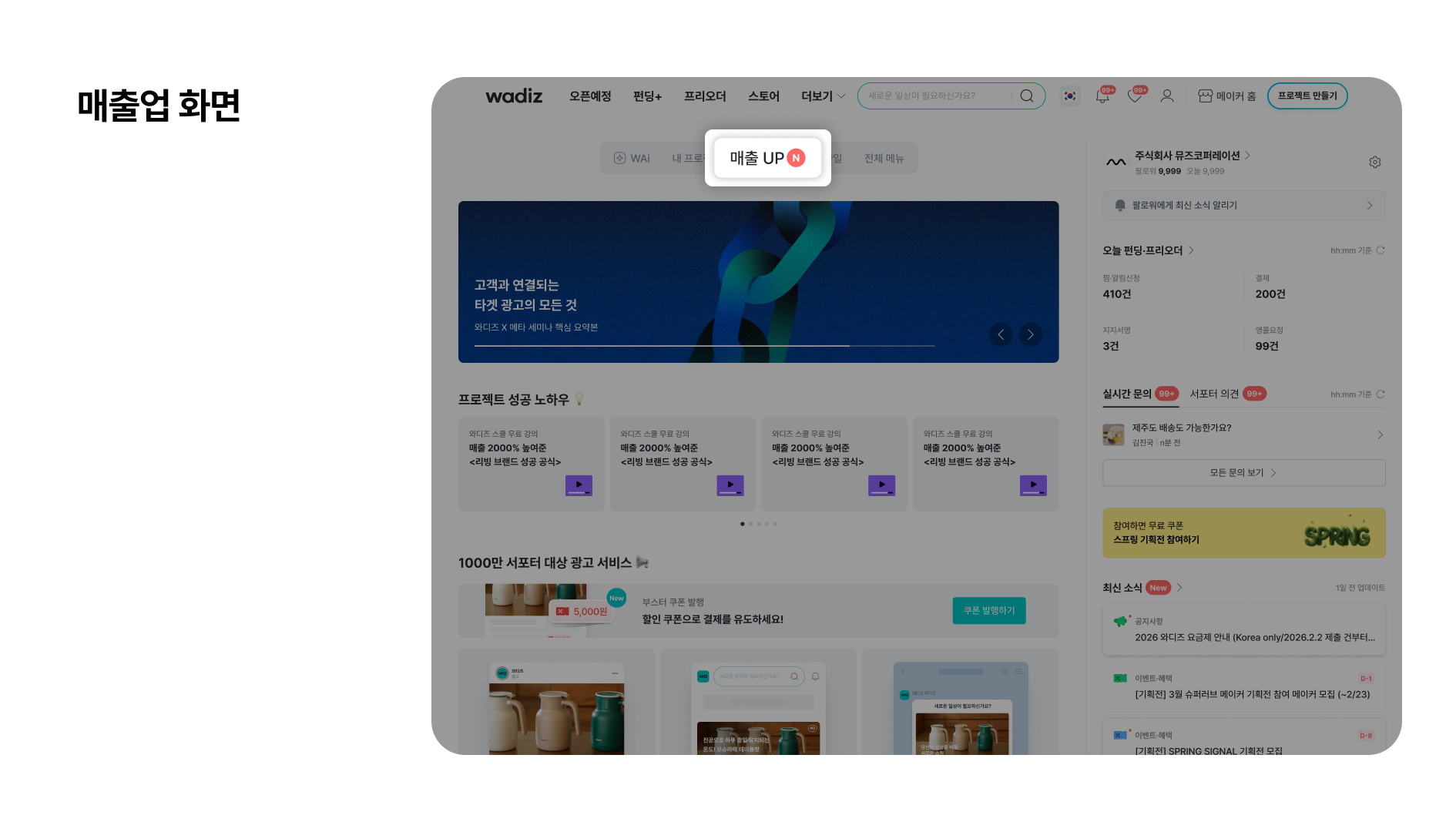
- Sales UP: You can carry out activities to increase project exposure and sales. \n
- You can check and execute advertising products.
- You can participate in planning events.
- You can check operation and marketing guides.
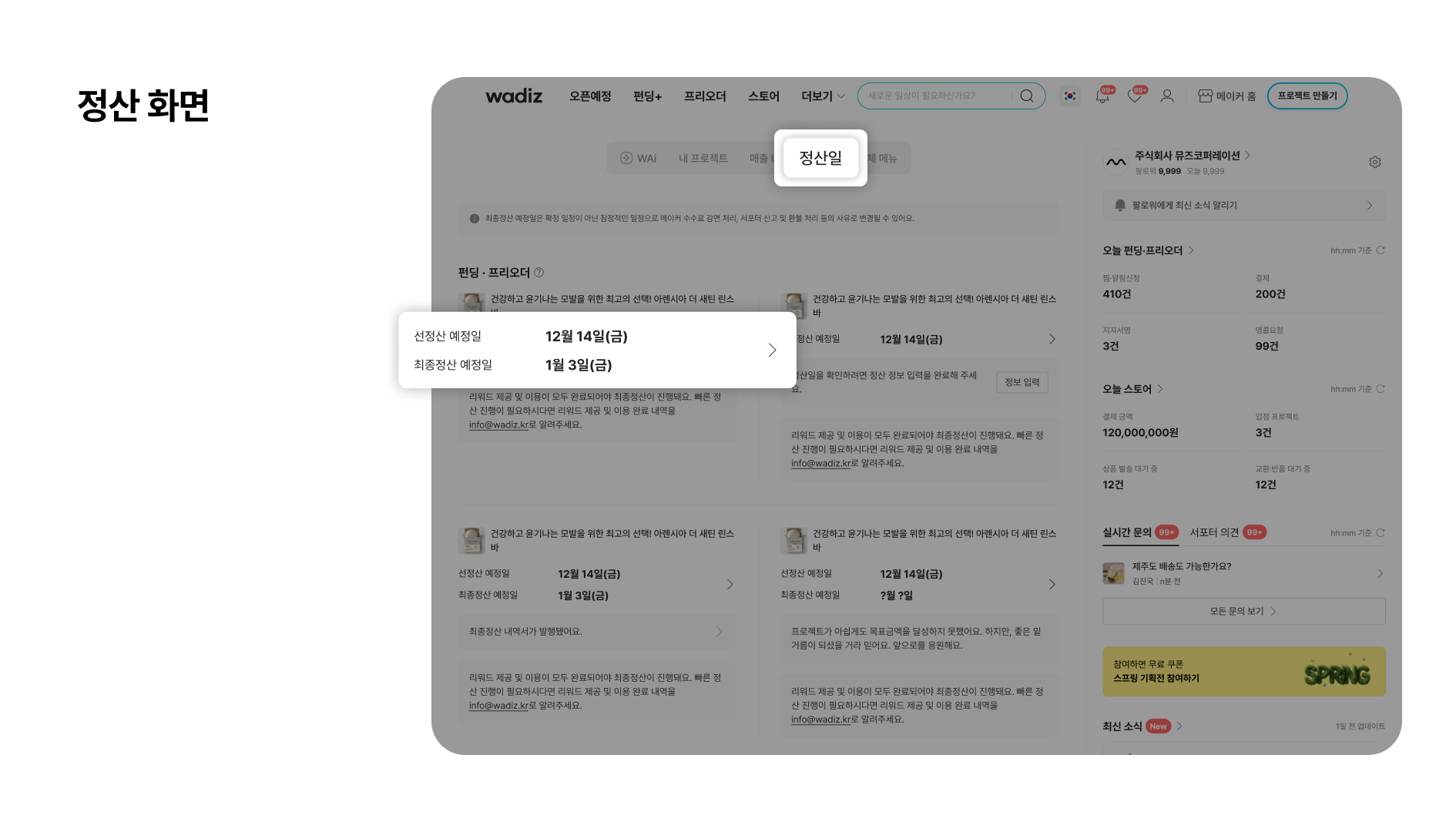
- Settlement Date: You can check the settlement schedule and flow for each project. \n
- You can check the scheduled advance settlement date and final settlement date.
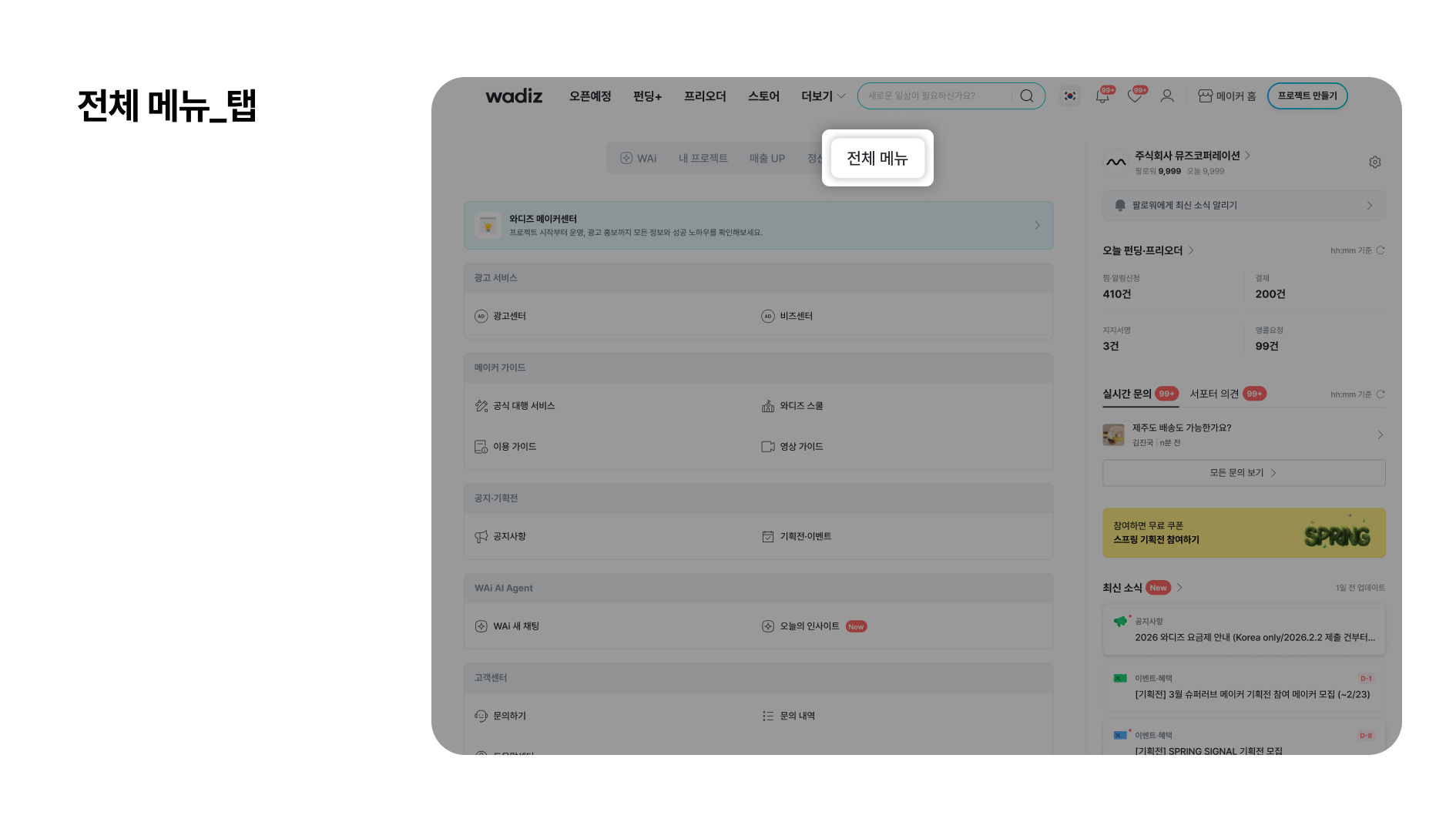
- All Menu: You can navigate to various pages needed for maker activities \n
- Advertising Services
- Maker Guide
- Notices and Events
- WAi Agent
- Account Settings
2) Main Information Confirmation
You can directly check information needed for project operation on a single screen.
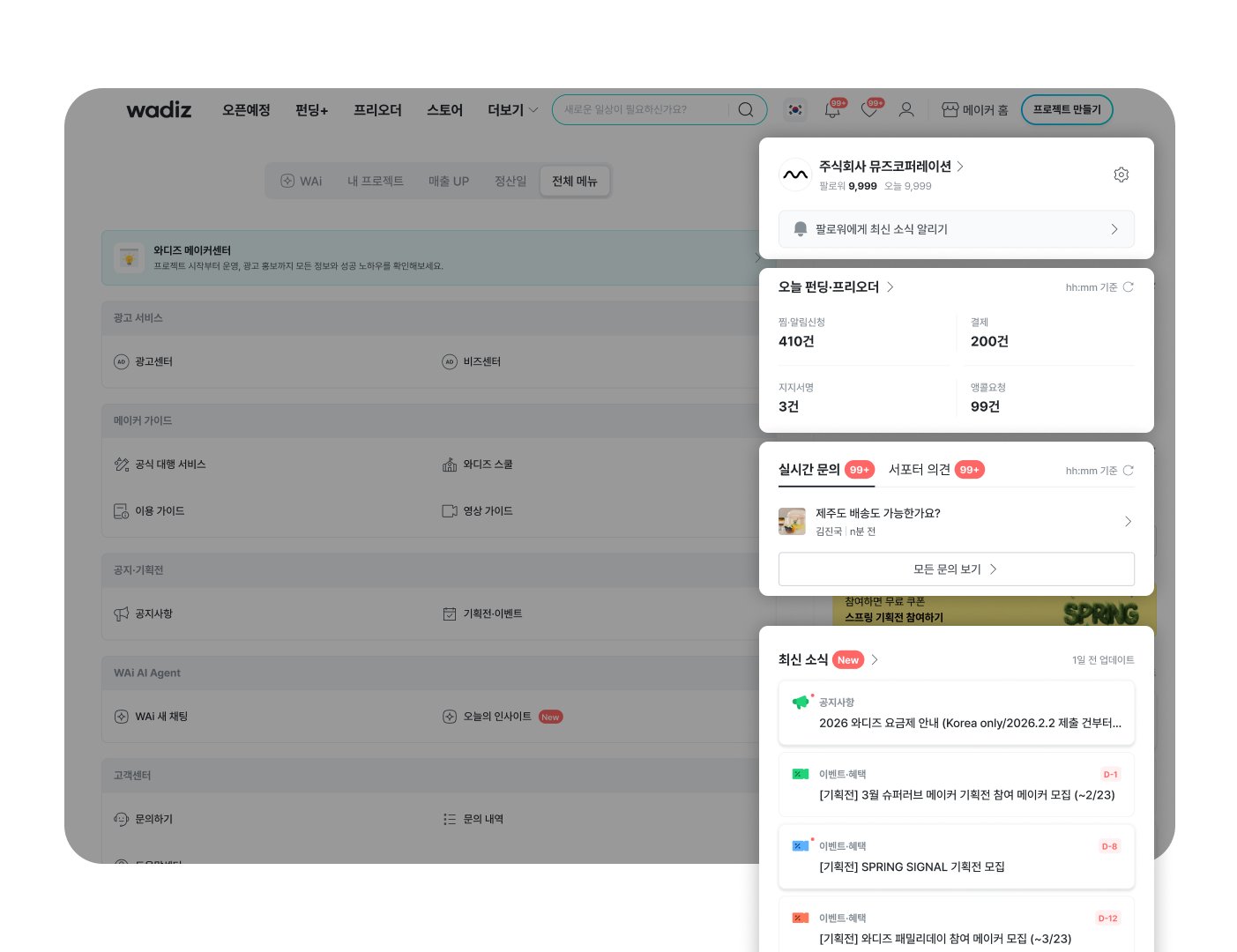
- Maker Page Management: You can manage your maker page and write news. \n
- You can navigate to your Maker Page by clicking on the maker name in the top right.
- Project Performance Indicators: You can check key data for your current project at a glance, allowing you to quickly understand project engagement and performance. \n
- Wishlist and Notification Requests
- Number of Purchases
- Number of Support Signatures
- Number of Encore Requests
- Supporter Inquiries and Feedback Confirmation: You can quickly check supporter inquiries and respond. \n
- You can check recent 1:1 inquiries and respond immediately.
- You can check supporter feedback (community comments).
- Latest News : You can check the latest information needed for makers. Check information about planning event participation and operation.
4. Things to Note When Using
- Maker Home should be used after logging in.
- WAi can be used without logging in, but conversations are not saved. When used after logging in, you can receive personalized answers.
- Some features may not be visible depending on the project progress status.