How do I report Value Added Tax (VAT) for Store projects?
The applicable Value Added Tax may differ depending on your business type (corporation/individual business owner) and reward type (taxable/tax-exempt items).
*Please use this guide for reference, and confirm through a tax professional or the National Tax Service consultation before filing and payment.
Step 1. Check the [Tax Reporting Data] menu in Maker Page Studio
You can check all of your funding, pre-order, and store sales data at once in Maker Page Studio.
You can check the final payment amount (sales agency amount) on a quarterly or monthly basis, and you can also check the commission fees that Wadiz charges you.
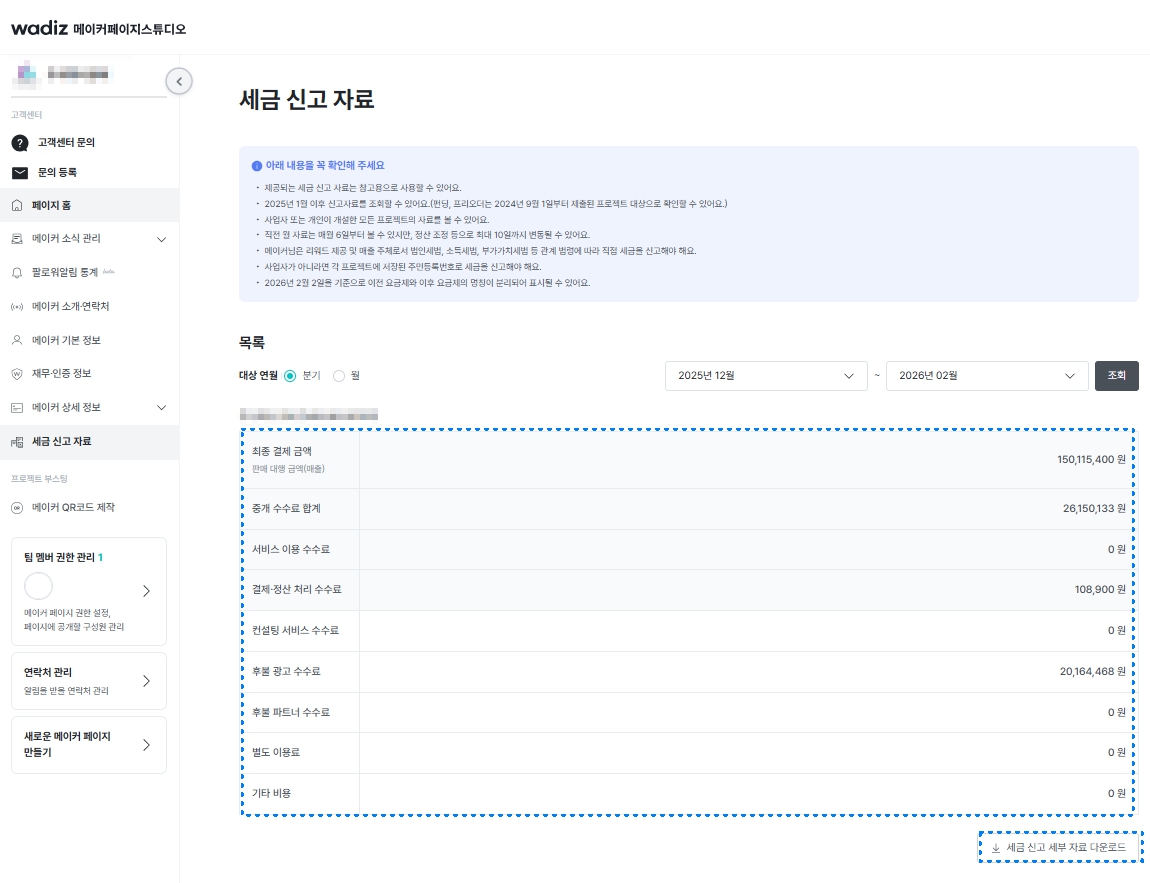
When you click to download detailed tax reporting data, you can check the sales amount and related commission amount for each project in detail.
⚠️ Notes and Precautions
- You can query settlement data that occurred from January 2025 onwards.
- If the business registration number differs for each project, please download the detailed tax reporting data and verify the company name/business registration number.
➡️These are answers to frequently asked questions about the tax reporting data menu.
Q. Where can I access the tax reporting data screen?
A. You can check the tax reporting data for Funding+ and Store projects in Maker Page Studio. Additionally, you can directly check the tax reporting data link within the Maker Studio of each project.
Q. When can I start viewing tax reporting data?
A. You can query settlement data for Funding+ and Store projects from January 2025 onwards.
Q. I don't see the tax reporting data menu in Funding+ Maker Studio.
A. Funding+ provides tax reporting data only for projects submitted after September 2024. Therefore, you can view the tax reporting data menu in Maker Studio only for projects registered after September 2024.
Q. I'm an integrated maker, but I'm not seeing the full history of business registration numbers.
A. If you have integrated 2 or more business owners into one Maker Page, you need to enter the upper-level integrated Maker Page Studio to view the full history. Lower-level business owners can only view data corresponding to their business registration number.
Step 2. Match the final payment amount (sales agency amount) for each project with the settlement statement
✅Store Projects
- For Store projects, the final payment amount (sales agency amount) is aggregated in the total payment amount for the month containing the settlement standard date and can be checked.
- Store is subject to the E-Commerce Act and recognizes sales when a purchase is confirmed (product delivery date + 7 days).
- For the 1st period, we settle the amount confirmed for purchase between the 1st and 15th, and for the 2nd period, the amount confirmed for purchase between the 16th and the last day of the month.
- Store has two periods: 1st period (settlement standard date: 15th) and 2nd period (settlement standard date: last day). If both periods have sales, you must report the combined amount as the monthly sales.
- If you have run multiple Store projects, you can refer to the settlement statement attachments by period to check detailed sales amounts for each project.
(Example) Settlement Statement by Period
| Project | Period Classification | Settlement Standard Date | Total Payment Amount |
| A | 1st Period | 1/15 | 50,000 KRW |
| B | 1st Period | 1/15 | 30,000 KRW |
| A | 2nd Period | 1/31 | 20,000 KRW |
| Total | 100,000 KRW | ||
(Example) Tax Reporting Detailed Data Standard
| Category | Project | Sales Recognition Month | Sales Agency Amount |
| Store | A | January | 70,000 KRW |
| B | January | 30,000 KRW | |
| Total | 100,000 KRW | ||
Step 3. VAT Reporting
Once you have completed the settlement data verification in the previous step, you must file and pay VAT for the corresponding amount on HOMETAX.
✅If you are a corporation or individual business owner, you must file VAT.
- Corporate business owners file quarterly for a total of 4 times
- Individual business owners (general) file semi-annually for a total of 2 times, except in certain cases
- Individual business owners (simplified taxpayer) file once a year
For details on VAT filing and payment deadlines and methods, please refer to HOMETAX.
✅Wadiz submits sales agency data by the 15th of the following month each quarter in accordance with Article 75 of the VAT Act.
✅When filing VAT, please report the sales classification as "Other (sales other than regular receipts)" based on the tax reporting data provided by Wadiz and the sales agency data submitted to the National Tax Service.
- Please verify once more the sales data provided by Wadiz and the sales agency data submitted to the National Tax Service (HOMETAX).
- We cannot issue a sales tax invoice for Wadiz because your sales are generated by providing rewards to supporters.
- Therefore, when filing VAT, please be sure to report the sales classification as "Other (sales other than regular receipts)".