How to Use a URL Generator to Track Marketing Effectiveness
Don't forget to take this with you!
- The URL generator is a tool that creates URLs to track the data of your supporters.
- It’s great for posting URLs on specific platforms like blogs or KakaoTalk.
- You can view the data collected from the URLs you’ve used under “Engagement by Channel” and “Behavior by Channel.”
How to Boost Your Project with Marketing
If you’re a maker currently working on a project, these questions might be running through your mind.
- “Is our funding going well thanks to the Facebook ads we launched?”
- “Are many supporters coming in through the project link I posted on my Instagram profile?”
- "Are many supporters coming from the paid ad we posted on the 000 Community? We spent 1 million won on it..."
Ultimately, “Why is my project doing well?” or “Why isn’t it doing well?”These questions stem from those fundamental doubts. You might find the answers in the appeal of the Rewards themselves or in the Story behind them. But finding the answers to these questions in marketingis also really important. There are two reasons for this.
First, you need to know which marketing strategies were effective in order to choose the most efficient ones. If Marketing Strategy A is less effective than Strategy B, we can focus more on Strategy B instead of A to reach more supporters. For example, if Strategy B involves paid marketing, we can decide to increase the budget for it.
Second, marketing analysis can boost results more quickly than other factors. Once a project is launched, it’s relatively difficult to modify the Rewards or the Story, but marketing campaigns are relatively easy to adjust or add. In particular, since marketing efficiency can be measured quantitatively, thorough analysis allows you to identify which marketing efforts are making a definite contribution to the project.
So, how can we quantitatively measure the effectiveness of marketing? Wadiz Maker Studio offers URL Tracker.
A URL generator that measures marketing efficiency
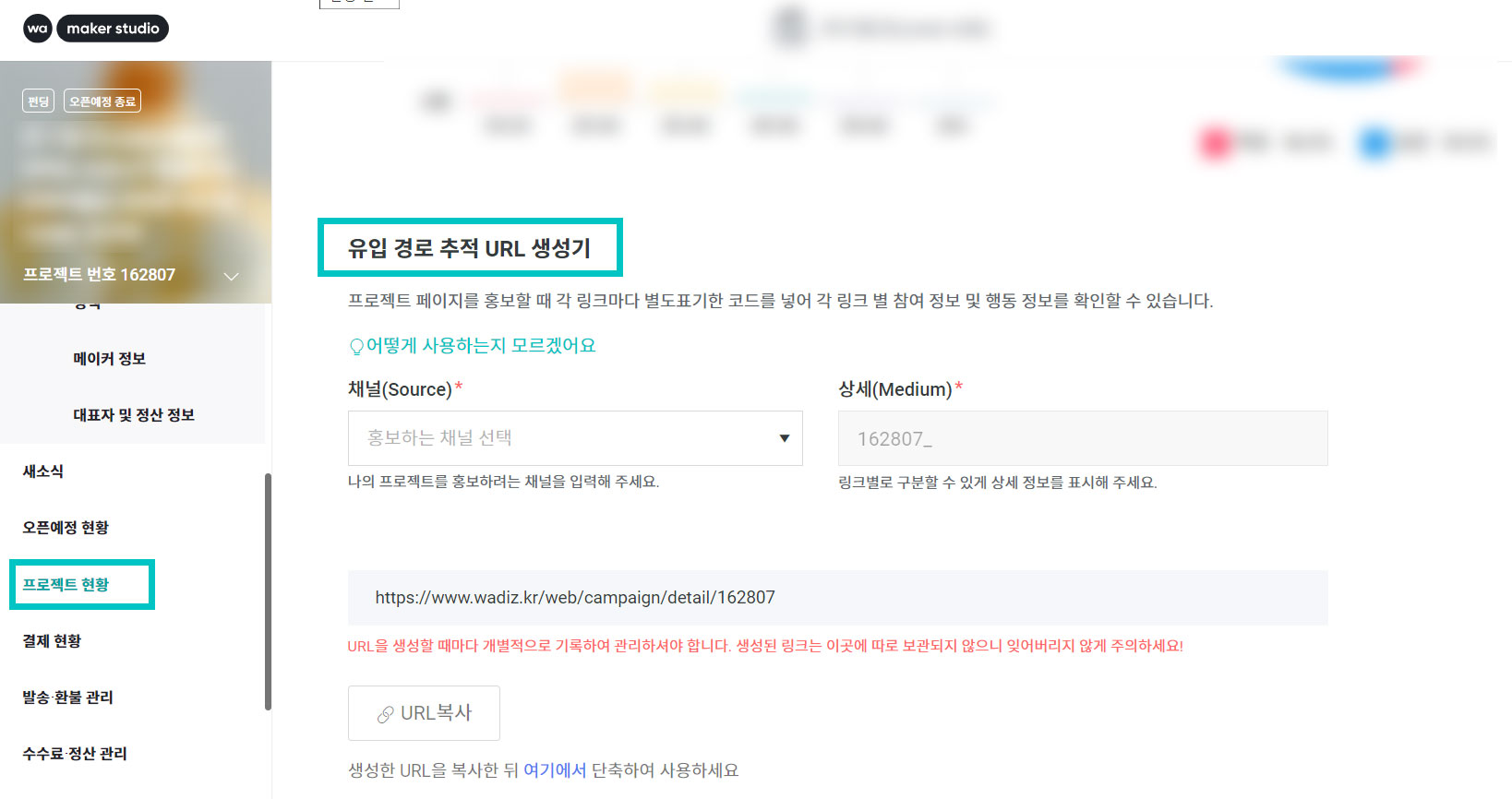
Maker Studio features a “Project Status” tab that provides basic project data. If you scroll all the way to the bottom of this tab, you’ll find today’s star feature: the “Traffic Source Tracking URL Generator.”
1) What is the URL Generator?
You’ll notice the term “Traffic Source Tracking” in the name, right? It’s a tool that generates URLs to track where and how supporters found their way to a maker’s project..
2) When should you use it?
You use the URL Generator before posting a link to your project on a specific media platform. Typically, when you’re running a marketing campaign on a website, social media, or other digital platform, by copying and pasting the “plain URL” displayed in the project’s address bar, right? However, URLs copied this way cannot be tracked. In other words, it’s difficult to know how many people clicked the link, what actions those visitors took on average, or whether their visits led to funding or pre-orders. This makes it difficult to determine whether the digital media where you posted the link was effective for marketing, right? That’s why you can use a URL generator to append various pieces of information to the “plain URL,” creating a trackable URL that you can then utilize.
- Plain URL: https://www.wadiz.kr/web/campaign/detail/162807
- Example of a URL generated by a URL generator: https://www.wadiz.kr/web/campaign/detail/162807?utm_source=maker_naver&utm_medium=162807_bloginfluencer
3) Could you give a specific example?
For example, if you want to promote your project in a KakaoTalk Open Chat where you’re active, you can use a URL generator to create a a “KakaoTalk Open Chat” URL. Then, after you actually post the URL in the Open Chat room, you can monitor it for a few days and check in Maker Studio to see how many people clicked on it and whether any of them actually participated.
If you’ve paid a YouTuber (influencer) whose content aligns well with your project to post a promotional video, you can provide them with a "URL for YouTube ad videos"using the URL generator and ask them to post it in the “More” section of the video.
In this case, , please note that the must be used strictly for that purpose. For example, what would happen if you copied a “YouTube Ad Video” URL and shared it in a KakaoTalk Open Chat? Anyone who clicks that URL in the Open Chat would be incorrectly tracked as having come from a “YouTube ad video.” So please manage your URLs carefully to prevent data from getting mixed up.
4) How do I use the URL generator?
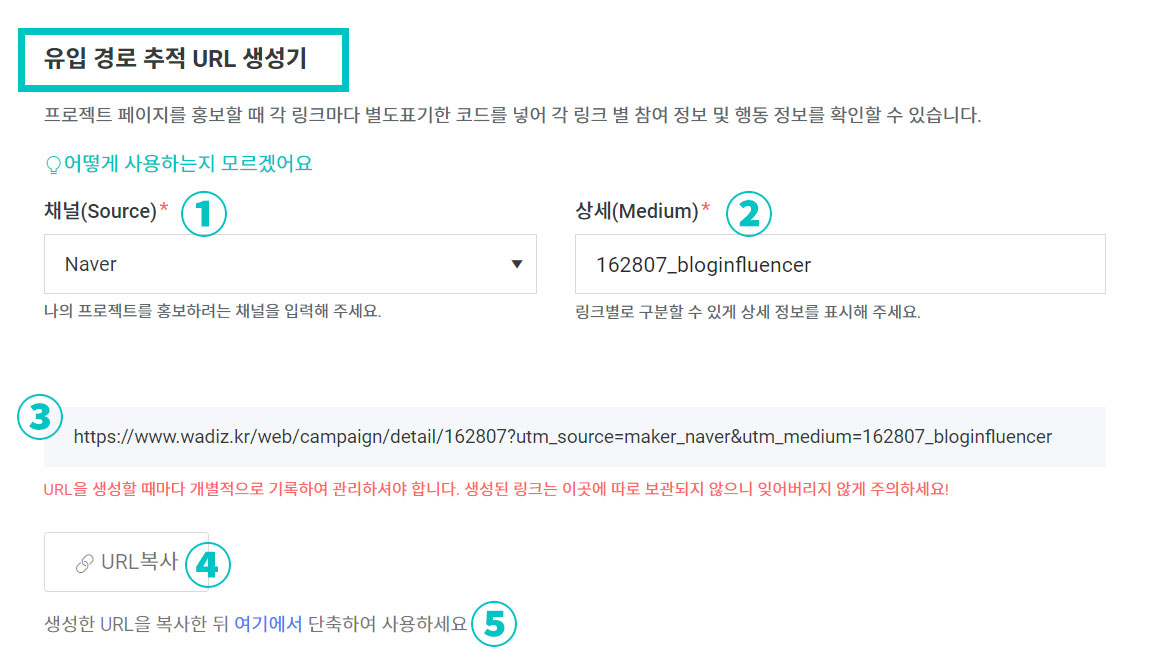
Just follow the steps labeled ① through ④ in the image. I’ll explain it so you can easily follow along! Let’s assumeI want to promote my project to Naver bloggers.
- ① Channel (Source):
Please select the name of the digital media platform where you’ll post the URL.
You can choose from Facebook, Google, Naver, Email, SMS, Kakao, or Unknown (Other). I selected Naver. - ② Details (Medium):The maker's project number will be automatically entered at the beginning of the URL
.
For the rest of the URL, please enter a word in English that will help you identify it later. Since I plan to post the URL to the “Maker’s Blog” section on Naver, I entered “bloginfluencer.”
Example) If the URL is for a KakaoTalk Open Chat → openchat
Example) If the URL is for a YouTube video to be posted on the “Jingook” channel → jingook - ③ Generated URL:
This section is automatically filled in based on the settings you entered in steps ① and ②. Now, simply use this URL wherever you want to promote your content. - ④ Copy URL:
You can easily copy the URL by clicking the button. If I were you, I’d send this copied URL to a blogger and ask them to post it on their blog. However, since the URL is quite long, it might look cluttered if the blogger posts it as-is. In that case, - ⑤ Shorten URL:
Try using the website called Bitly, which is introduced here. It’s a site that shortens long URLs into short, neat links. Although it looks short, clicking on it reveals the full URL, as shown in the image below. Rest assured that this does not affect data tracking.

5) How do I check and analyze the tracked data?
Try posting your project URL in various places using the URL generator like this. After that, it’s time to look at, right? You can view this data in the two tabs under “Traffic Source Overview” at the top of the URL generator.
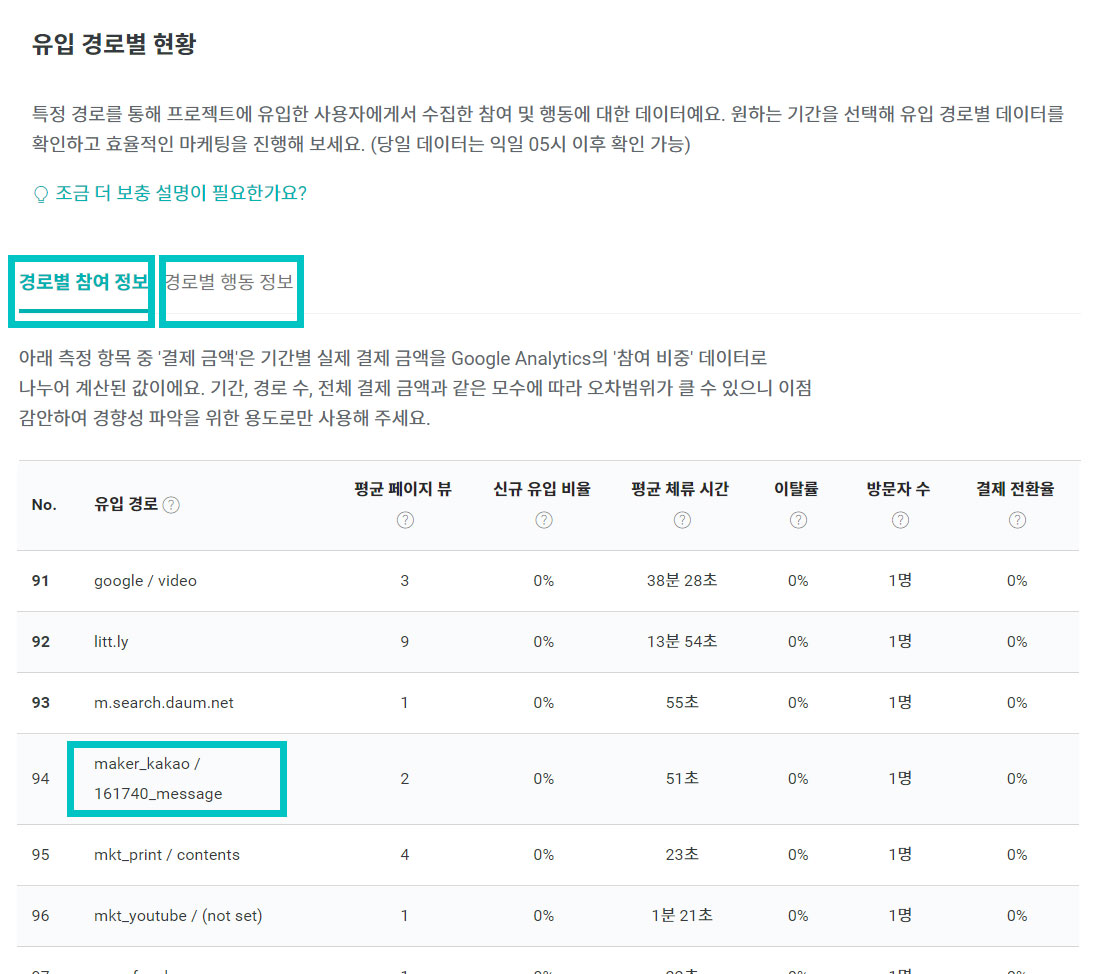
It will be displayed in the “Traffic Source” column in the following format:
maker_[①Channel (Source)] / Project Number_[②Detail (Medium)]
Using the Naver Blog influencer example from earlier, it would look like this: maker_naver / 162807_bloginfluencer . Here’s how to analyze the how to analyze the datais explained in more detail in the next post, so please refer to it!
> Where can I view supporter traffic data?
The Start of Marketing You Can Do on Your Own
In this post, we explored why a URL generator is necessary and how to use it. If you’ve read this post carefully, you’re well on your way to becoming a one-person maker. While it’s best to use the URL generator to analyze and improve your marketing effectiveness, it can also be fun to post the URL in a group chat with friends and see “just how many people actually clicked on my project.” To all you makers out there—for whom every day is a new learning experience as you work on your projects—thank you for your hard work today!