Can I process multiple rewards for bulk shipment all at once?
Yes, you can send up to 300 items.
Have you shipped the Rewards you promised to your supporters? In Maker Studio’s [Shipping & Refund Management] menu, enter the shipping information, and change the Rewards shipping status to “Shipped”to complete the shipping process.
※ You can choose the shipping method based on the quantity.
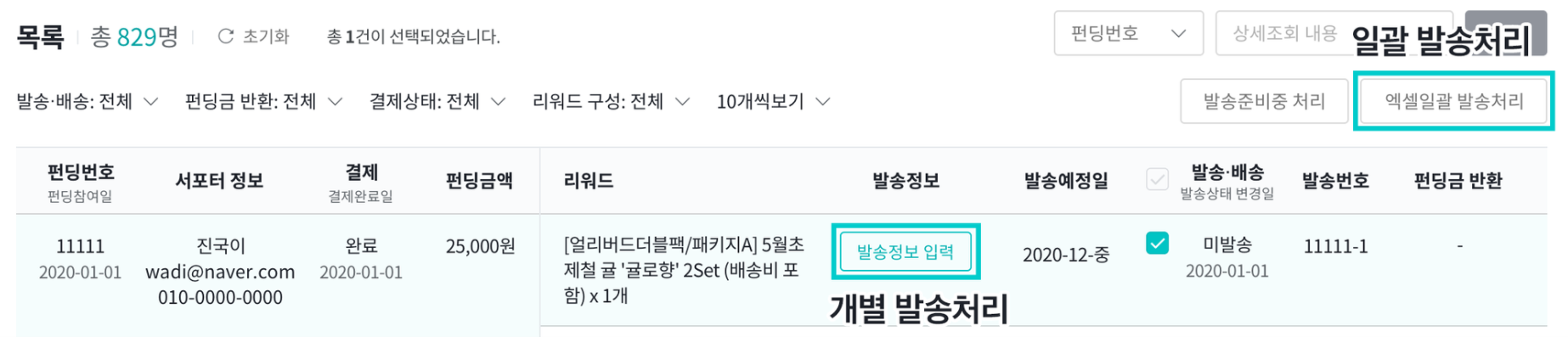
- Individual Shipping: Enter the shipping information for each funding order one by one. (▶Go to the Batch Shipping Guide)
- Bulk Shipping Processing: Enter shipping information for up to 300 entries at once. Download and use the Excel file.
|

<Bulk Shipping Method>
① Click the [Excel Bulk Shipping] button.
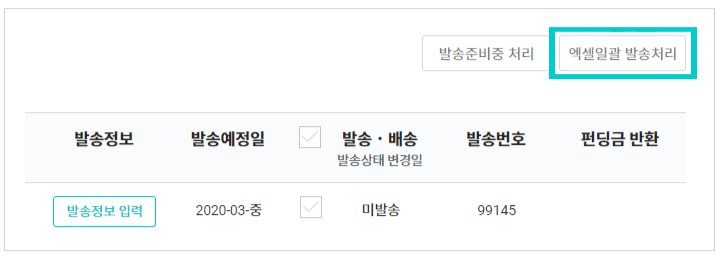
② Download the template (Excel Bulk Shipment.xlsx).
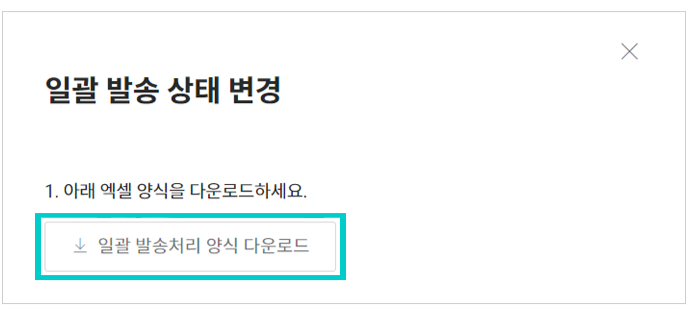
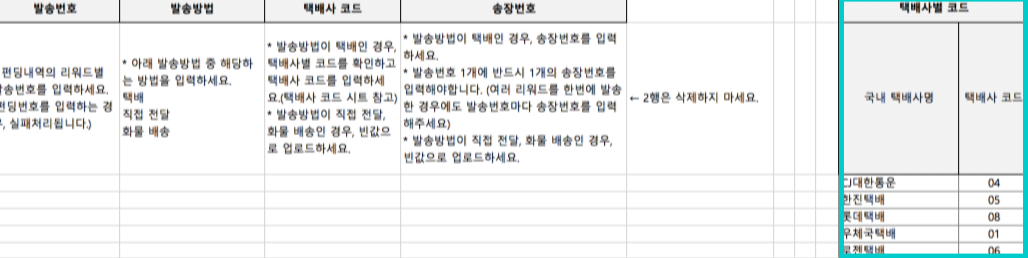
③ In the Excel file, [Shipping Number], [Shipping Method], [Courier Code], and [Waybill Number]in the Excel file enter.
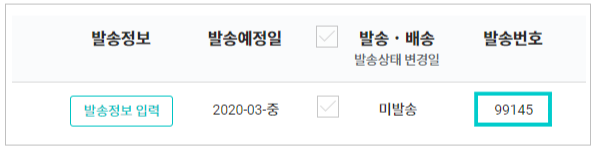
a. Shipment Number
- These are individual numbersthat can be found on the right side of the list in the [Shipping & Refund Management] menu in Maker Studio.
- Click the [Download Payment & Shipping Information] button under the [Shipping & Refund Management] menu to download all shipping numbers as an Excel file.
- The shipping number is not the same as the funding number. Please note that if a funding number is entered as the shipping number, the shipment will not be processed.
b. Shipping Method
Please enter the method you used to ship the Rewards. You can choose from courier, in-person delivery, or freight shipping.
c. Courier code
- This field is required when you select [Courier] as the shipping method. If you are not using a courier, leave the courier code field blank.
- Checkthe codes for each courier service provided on the right side of the Excel fileand enter them in the [Courier Code] field.
d. Waybill number
- Fill this out only when you select [Courier] as the shipping method. If you are not using a courier, please leave the waybill number field blank.
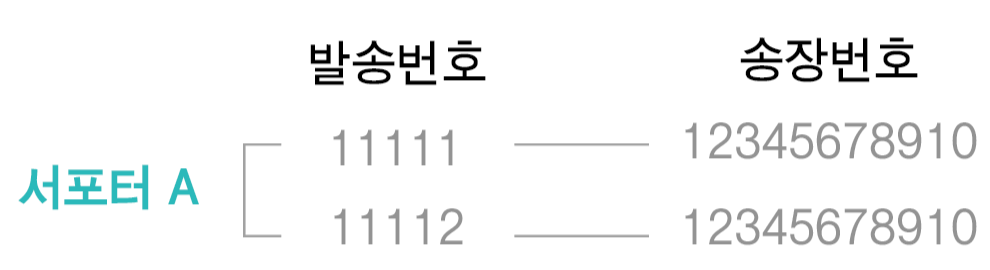
- Enterone tracking number per shipment number. If you’re shipping multiple Rewards at once, enter the same tracking number for each shipment number.
 |
④ Save the Excel filewith all shipping information entered, then uploadit to Maker Studio.
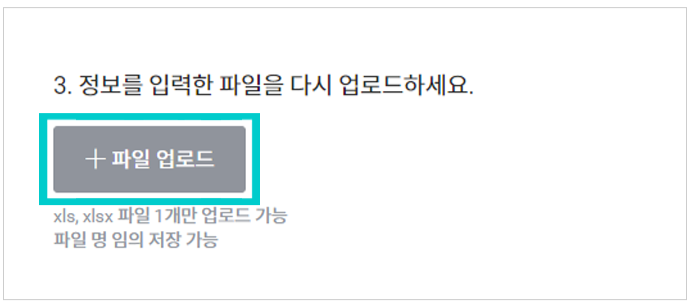
⑤ Check to see if there are any [Unprocessable Requests]. If there are none, click the [Batch Shipment Processing] button.
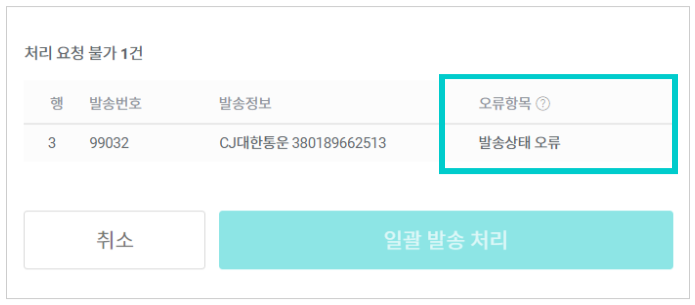
- If there are any issues that prevent shipment processing due to input errors, they will be indicated in the [Error Items] section.
- Depending on the type of error, please correct the Excel file and upload it again.
- Shipping Number Error: When a shipping number was entered incorrectly or the same shipping number was entered multiple times
- Shipping method error: When a method other than courier, in-person delivery, or freight shipping was entered
- Waybill number error: When the entered number is 15 characters or longer
- Shipping/Delivery Status Error: When the shipment has already been processed as shipped
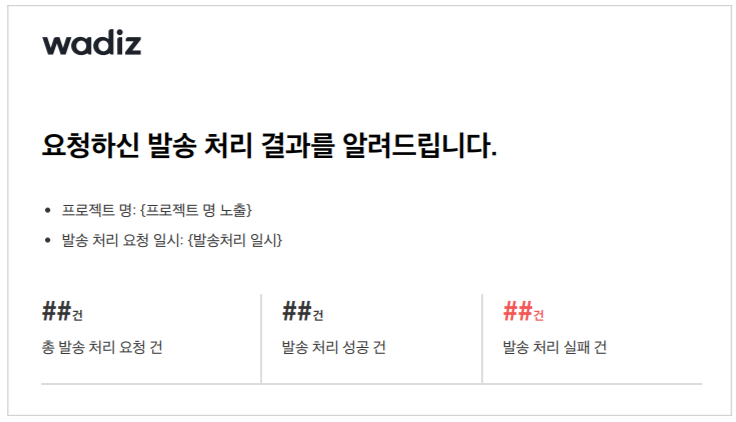
⑥ You will be notified of the shipping resultsvia email.
- It may take about 10 minutes for the results to be posted.Be sure to check your email inbox after the shipment is processed.
- Successful shipment processing: The shipment information was entered correctly, and a shipment completion notification will be sent to the supporter via KakaoTalk.
- Failed shipment: You will need to re-enter the shipment information.
※ If you entered the shipping information incorrectly, please submit an inquiry.
※ Be sure to process the shipment after the Rewards have been shipped.
- If the shipment is not processed, the final settlement amount will not be paid.
- If shipping is not processed by the scheduled Rewards shipping date, a refund request may be submitted.
- If shipping is not processed within 11 months of the project end date, payments for unshipped rewards may be refunded.